Halide:專業控制,輕鬆駕馭
Halide為何獲得Apple Design Award 2022:手勢相機控制、智慧啟動和膠卷風UX。附SwiftUI實作模式。
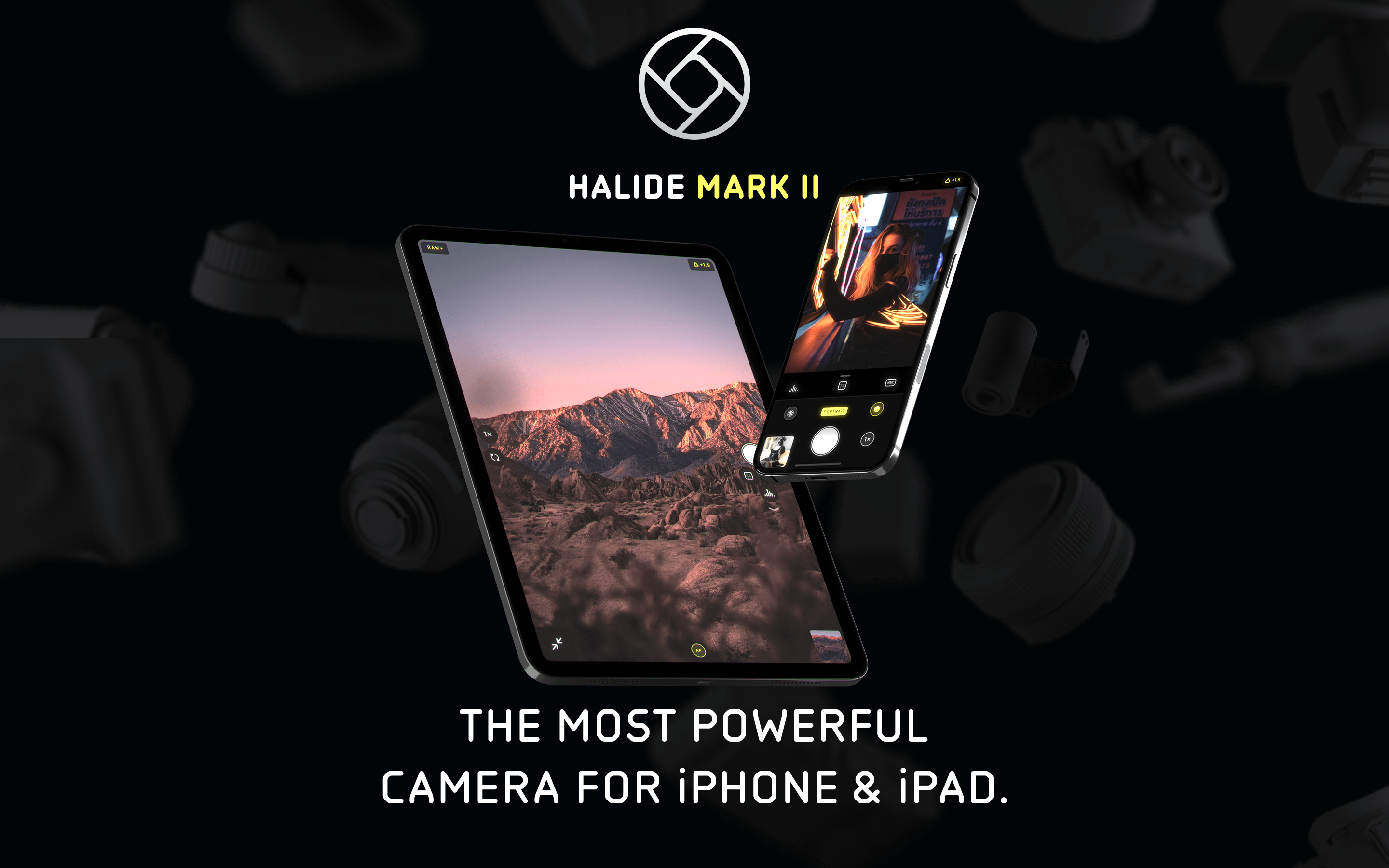
「複雜性依然存在——只是不會讓你感到不知所措。當你以一種相對容易上手的方式進入這個世界時,它能點燃你的熱情,而非帶來恐懼。」
Halide 證明了專業工具不需要專業級的介面。作為 2022 年 Apple Design Award 得主,它將 DSLR 等級的控制隱藏在直覺的手勢操作之後,只有當你需要時才會展現其強大功能。
為什麼 Halide 值得關注
Halide 由前 Apple 設計師 Sebastiaan de With 和前 Twitter 工程師 Ben Sandofsky 共同創造,成功彌合了 Apple 簡易相機與令人望而生畏的專業應用程式之間的鴻溝。
主要成就: - 2022 年 Apple Design Award 得主 - 透過 Instant RAW 讓 RAW 攝影變得親民易用 - 普及了手勢操作的相機控制方式 - 所有 iPhone 尺寸皆可單手操作 - 超過 10,000 則五星評價
核心要點
- 隱藏複雜性,而非移除它 - 專業功能確實存在,但在被召喚之前保持隱形;「飛行模擬器」式介面並非展現強大功能的唯一方式
- 智慧啟動優於切換按鈕 - 在互動時自動出現的工具(如拖曳時顯示的對焦放大鏡)比手動顯示/隱藏控制更加直覺
- 手勢應該要有實體感 - 垂直滑動控制曝光、水平滑動控制對焦,直接對應真實相機轉盤的操作行為
- 在使用中教學 - 狀態變化時的簡短標籤幫助使用者自然學習攝影術語,無需另外的教學課程
- 單手操作是一種設計限制 - 針對拇指可及範圍進行設計,迫使設計者建立良好的資訊層級並優先考慮必要控制項
核心設計理念
「不打擾使用者」
Halide 的指導原則:工具應在需要時出現,不需要時消失。
OTHER PRO CAMERA APPS                 HALIDE'S APPROACH
───────────────────────────────────────────────────────────────────
"Flight simulator" UI                 Clean viewfinder
All controls visible always           Controls appear on demand
Learn UI before using                 Learn while using
Fixed layout                          Customizable toolbar
Manual-only workflow                  Auto mode + manual available
關鍵洞察:「其他相機應用程式看起來就像飛行模擬器,有大量的轉盤,這讓人感到害怕,即使對像我這樣熱愛底片相機的人來說也是如此。」
底片相機的啟發
Halide 將類比相機的觸感樂趣轉化為觸控螢幕手勢。
FILM CAMERA                          HALIDE TRANSLATION
───────────────────────────────────────────────────────────────────
Aperture ring rotation               Vertical swipe for exposure
Focus ring rotation                  Horizontal swipe for focus
Mechanical click stops               Haptic feedback
Physical viewfinder                  Full-screen composition
Light meter needle                   Digital histogram
Manual/Auto switch                   AF button toggle
設計目標:「給孩子一台相機,他們會玩弄光圈環、轉盤和開關。也許我們能將這份愉悅的感覺帶到一片玻璃上的應用程式中。」
設計模式庫
1. 智慧啟動
控制項在需要時依情境出現,然後消失。無需手動顯示/隱藏。
範例:對焦放大鏡
DEFAULT STATE
┌─────────────────────────────────────────────┐
│                                             │
│              [Viewfinder]                   │
│                                             │
│                                             │
│                                             │
│  [Focus dial at bottom]                     │
└─────────────────────────────────────────────┘

WHEN USER TOUCHES FOCUS DIAL
┌─────────────────────────────────────────────┐
│  ┌──────────┐                               │
│  │ FOCUS    │  ← Focus loupe appears        │
│  │ LOUPE    │    automatically              │
│  │ (zoomed) │                               │
│  └──────────┘                               │
│                                             │
│  [Focus dial active]                        │
└─────────────────────────────────────────────┘

WHEN USER RELEASES
┌─────────────────────────────────────────────┐
│                                             │
│              [Viewfinder]                   │
│                   ↑                         │
│         Loupe fades out                     │
│                                             │
│  [Focus dial at rest]                       │
└─────────────────────────────────────────────┘
SwiftUI 實作概念:
struct IntelligentActivation<Content: View, Tool: View>: View {
    @Binding var isInteracting: Bool
    let content: Content
    let tool: Tool

    var body: some View {
        ZStack {
            content

            tool
                .opacity(isInteracting ? 1 : 0)
                .animation(.easeInOut(duration: 0.2), value: isInteracting)
        }
    }
}

struct FocusControl: View {
    @State private var isDragging = false
    @State private var focusValue: Double = 0.5

    var body: some View {
        ZStack {
            // Viewfinder
            CameraPreview()

            // Focus loupe - appears when dragging
            IntelligentActivation(isInteracting: $isDragging, content: EmptyView()) {
                FocusLoupeView(zoomLevel: 3.0)
                    .frame(width: 120, height: 120)
                    .position(x: 80, y: 80)
            }

            // Focus dial
            VStack {
                Spacer()
                FocusDial(value: $focusValue)
                    .gesture(
                        DragGesture()
                            .onChanged { _ in
                                isDragging = true
                            }
                            .onEnded { _ in
                                isDragging = false
                            }
                    )
            }
        }
    }
}
2. 漸進式揭露
預設簡單,需要時才複雜。介面根據模式進行轉換。
模式轉換:
AUTO MODE (Default)
┌─────────────────────────────────────────────┐
│                                             │
│              [Viewfinder]                   │
│                                             │
│                                             │
│ ┌───┐                               ┌───┐   │
│ │ [F] │                               │ AF │   │
│ └───┘                               └───┘   │
│              ┌───────────┐                  │
│              │   (●)     │  ← Shutter       │
│              └───────────┘                  │
└─────────────────────────────────────────────┘
Minimal controls. Just shoot.

MANUAL MODE (After tapping "AF" → "MF")
┌─────────────────────────────────────────────┐
│  [Histogram]                   [Focus Peak] │
│                                             │
│              [Viewfinder]                   │
│                                             │
│ ┌───┐ ┌───┐ ┌───┐              ┌────┐      │
│ │ [F] │ │WB │ │ISO│              │ MF │      │
│ └───┘ └───┘ └───┘              └────┘      │
│              ┌───────────┐                  │
│  [────────────────●───────] ← Focus dial   │
│              │   (●)     │                  │
│              └───────────┘                  │
└─────────────────────────────────────────────┘
Full controls revealed. Pro tools accessible.
實作方式:
enum CameraMode {
    case auto
    case manual

    var visibleControls: [CameraControl] {
        switch self {
        case .auto:
            return [.flash, .shutter, .autoFocus]
        case .manual:
            return [.flash, .whiteBalance, .iso, .shutter,
                    .manualFocus, .histogram, .focusPeaking]
        }
    }
}

struct AdaptiveToolbar: View {
    @Binding var mode: CameraMode

    var body: some View {
        HStack {
            ForEach(mode.visibleControls, id: \.self) { control in
                ControlButton(control: control)
                    .transition(.asymmetric(
                        insertion: .scale.combined(with: .opacity),
                        removal: .scale.combined(with: .opacity)
                    ))
            }
        }
        .animation(.spring(response: 0.3), value: mode)
    }
}
3. 手勢操控
曝光與對焦透過滑動手勢控制,如同操作實體相機轉盤。
曝光控制(螢幕任意位置垂直滑動)
           ↑ 向上滑動 = 增加亮度
           │
    ───────┼─────── 目前曝光值
           │
           ↓ 向下滑動 = 降低亮度

對焦控制(在轉盤上水平滑動)
    近 ←────────●────────→ 遠
                  │
            目前對焦距離

快捷操作(邊緣滑動)
    ← 左側邊緣:切換至相簿
    → 右側邊緣:開啟手動控制面板
實作方式:
struct GestureCamera: View {
    @State private var exposure: Double = 0
    @State private var focus: Double = 0.5

    var body: some View {
        ZStack {
            CameraPreview()

            // 曝光手勢(螢幕任意位置)
            Color.clear
                .contentShape(Rectangle())
                .gesture(
                    DragGesture()
                        .onChanged { value in
                            // 垂直位移對應曝光值
                            let delta = -value.translation.height / 500
                            exposure = max(-2, min(2, exposure + delta))
                            HapticsEngine.impact(.light)
                        }
                )

            // 視覺回饋
            VStack {
                Spacer()
                ExposureIndicator(value: exposure)
                    .opacity(exposure != 0 ? 1 : 0)
            }
        }
    }
}

struct ExposureIndicator: View {
    let value: Double

    var body: some View {
        HStack {
            Image(systemName: value > 0 ? "sun.max.fill" : "moon.fill")
            Text(String(format: "%+.1f", value))
                .monospacedDigit()
        }
        .font(.caption)
        .padding(8)
        .background(.ultraThinMaterial)
        .clipShape(Capsule())
    }
}
4. 教學性微文案
當使用者與控制項互動時,簡短的標籤會教導他們相關術語。
使用者點擊「AF」→ 切換為「MF」
┌────────────────────────────────┐
│  手動對焦                      │  ← 短暫顯示
│  滑動調整對焦距離              │
└────────────────────────────────┘
   2 秒後淡出

使用者啟用對焦峰值
┌────────────────────────────────┐
│  對焦峰值                      │
│  紅色高亮區域 = 已合焦         │
└────────────────────────────────┘
實作方式:
struct EducationalToast: View {
    let title: String
    let description: String
    @Binding var isVisible: Bool

    var body: some View {
        VStack(alignment: .leading, spacing: 4) {
            Text(title)
                .font(.headline)
            Text(description)
                .font(.caption)
                .foregroundStyle(.secondary)
        }
        .padding()
        .background(.ultraThinMaterial)
        .clipShape(RoundedRectangle(cornerRadius: 12))
        .opacity(isVisible ? 1 : 0)
        .onAppear {
            DispatchQueue.main.asyncAfter(deadline: .now() + 2) {
                withAnimation { isVisible = false }
            }
        }
    }
}

// Usage
struct FocusModeToggle: View {
    @State private var showToast = false
    @Binding var isManual: Bool

    var body: some View {
        Button(isManual ? "MF" : "AF") {
            isManual.toggle()
            showToast = true
        }
        .overlay(alignment: .top) {
            EducationalToast(
                title: isManual ? "Manual Focus" : "Auto Focus",
                description: isManual
                    ? "Swipe to adjust distance"
                    : "Tap to focus on subject",
                isVisible: $showToast
            )
            .offset(y: -60)
        }
    }
}
5. 專業工具(直方圖、對焦峰值、斑馬紋)
專業視覺化工具可供使用,但不會造成視覺負擔。
直方圖選項:
放置選項
┌─────────────────────────────────────────────┐
│ [▁▂▃▅▇█▅▃▁]                                 │  ← 頂部角落(精簡模式)
│                                             │
│              [觀景窗]                        │
│                                             │
└─────────────────────────────────────────────┘

┌─────────────────────────────────────────────┐
│              [觀景窗]                        │
│                                             │
│   ┌─────────────────────────────────────┐   │
│   │ ▁▂▃▅▇██▅▃▂▁ RGB                     │   │  ← 底部(詳細模式)
│   └─────────────────────────────────────┘   │
└─────────────────────────────────────────────┘

直方圖類型(點擊切換)
1. 亮度(單色)
2. RGB(色彩通道)
3. 波形圖(垂直分佈)
對焦峰值疊加層:
struct FocusPeakingOverlay: View {
    let enabled: Bool
    let peakingColor: Color = .red

    var body: some View {
        if enabled {
            // 實際產品中會使用 Metal shader
            // 在對焦平面上高亮顯示邊緣
            GeometryReader { _ in
                // 高亮顯示對焦區域的疊加層
                // 基於當前對焦距離的邊緣偵測
            }
            .blendMode(.plusLighter)
        }
    }
}

struct ZebraOverlay: View {
    let threshold: Double  // 0.0 到 1.0
    let pattern: ZebraPattern = .diagonal

    enum ZebraPattern {
        case diagonal
        case horizontal
    }

    var body: some View {
        // 在過曝區域顯示條紋疊加層
        // 幫助在拍攝前識別裁切區域
    }
}
6. 可自訂工具列
使用者可以重新排列工具以符合自己的工作流程。
預設工具列
[閃光燈] [格線] [計時器] ─(●)─ [RAW] [AF] [設定]

長按自訂
┌─────────────────────────────────────────────┐
│  拖曳以重新排序                              │
│                                             │
│  [閃光燈]   [格線]   [計時器]                │
│     ↕         ↕         ↕                   │
│  [RAW]    [微距]   [設定]                    │
│                                             │
│  隱藏項目:                                  │
│  [斑馬紋] [波形圖] [景深]                    │
│                                             │
│  [重設為預設]                    [完成]      │
└─────────────────────────────────────────────┘
實作方式:
struct CustomizableToolbar: View {
    @State private var tools: [CameraTool] = CameraTool.defaults
    @State private var isEditing = false

    var body: some View {
        HStack {
            ForEach(tools) { tool in
                ToolButton(tool: tool)
                    .draggable(tool) // iOS 16+
            }
        }
        .onLongPressGesture {
            isEditing = true
        }
        .sheet(isPresented: $isEditing) {
            ToolbarEditor(tools: $tools)
        }
    }
}

struct ToolbarEditor: View {
    @Binding var tools: [CameraTool]

    var body: some View {
        NavigationStack {
            List {
                Section("Active Tools") {
                    ForEach($tools) { $tool in
                        ToolRow(tool: tool)
                    }
                    .onMove { from, to in
                        tools.move(fromOffsets: from, toOffset: to)
                    }
                }

                Section("Available Tools") {
                    ForEach(CameraTool.hidden(from: tools)) { tool in
                        ToolRow(tool: tool)
                            .onTapGesture {
                                tools.append(tool)
                            }
                    }
                }
            }
            .navigationTitle("Customize Toolbar")
            .toolbar {
                Button("Done") { /* dismiss */ }
            }
        }
    }
}
視覺設計系統
色彩調色盤
extension Color {
    // Halide 在 UI 外框使用極簡色彩
    static let halideBlack = Color(hex: "#000000")
    static let halideWhite = Color(hex: "#FFFFFF")
    static let halideGray = Color(hex: "#8E8E93")

    // 用於啟用狀態的強調色
    static let halideYellow = Color(hex: "#FFD60A")  // 啟用指示器

    // 對焦峰值
    static let halideFocusPeak = Color(hex: "#FF3B30")  // 紅色疊加層
    static let halideZebra = Color(hex: "#FFFFFF").opacity(0.5)
}
字體排印
struct HalideTypography {
    // UI 標籤(小字、大寫)
    static let controlLabel = Font.system(size: 10, weight: .bold, design: .rounded)
        .smallCaps()

    // 數值(等寬字體用於數字)
    static let valueDisplay = Font.system(size: 14, weight: .medium, design: .monospaced)

    // 教學提示框
    static let tooltipTitle = Font.system(size: 14, weight: .semibold)
    static let tooltipBody = Font.system(size: 12, weight: .regular)
}
動畫與觸覺回饋
觸覺回饋系統
struct HapticsEngine {
    static func impact(_ style: UIImpactFeedbackGenerator.FeedbackStyle) {
        let generator = UIImpactFeedbackGenerator(style: style)
        generator.impactOccurred()
    }

    static func exposureChange() {
        // 曝光調整時的輕度震動
        impact(.light)
    }

    static func focusLock() {
        // 對焦鎖定時的中度震動
        impact(.medium)
    }

    static func shutterPress() {
        // 快門按下時的強力震動
        impact(.heavy)
    }

    static func modeSwitch() {
        // 模式切換時的選擇回饋
        let generator = UISelectionFeedbackGenerator()
        generator.selectionChanged()
    }
}
控制動畫
// 轉盤旋轉動畫
struct FocusDial: View {
    @Binding var value: Double

    var body: some View {
        GeometryReader { geo in
            // Dial visual with tick marks
            Circle()
                .stroke(Color.white.opacity(0.3), lineWidth: 2)
                .overlay {
                    // Tick marks rotate with value
                    ForEach(0..<12) { i in
                        Rectangle()
                            .fill(Color.white)
                            .frame(width: 2, height: 10)
                            .offset(y: -geo.size.height / 2 + 15)
                            .rotationEffect(.degrees(Double(i) * 30))
                    }
                }
                .rotationEffect(.degrees(value * 360))
                .animation(.spring(response: 0.2, dampingFraction: 0.8), value: value)
        }
    }
}
對我們工作的啟發
1. 隱藏複雜性,而非移除它
進階功能存在但保持隱藏,直到被呼喚時才顯現。
2. 智慧啟動優於切換按鈕
工具在互動時自動出現(如拖曳時顯示對焦放大鏡)勝過手動顯示/隱藏。
3. 手勢應有實體感
垂直滑動控制曝光,水平滑動控制對焦——對應真實相機轉盤的操作方式。
4. 在使用中教學
狀態改變時的簡短標籤幫助使用者自然地學習術語。
5. 單手操作是設計約束
為拇指可及範圍而設計,能強化良好的資訊層級結構。
常見問題
Halide 與其他專業相機應用程式有何不同?
大多數專業相機應用程式同時顯示所有控制項,形成 Halide 創作者所稱的「飛行模擬器」介面。Halide 從乾淨的觀景窗開始,僅在需要時才顯示控制項。自動模式顯示最少的 UI;切換到手動模式時,會漸進式地顯示直方圖、對焦峰值、ISO 和白平衡控制項。這種方法讓單眼相機級別的功能變得容易使用,而不會讓新手用戶感到不知所措。
什麼是智慧啟動,為什麼它很重要?
智慧啟動意味著工具會在你與相關控制項互動時自動出現,停止時則消失。例如,當你觸碰對焦轉盤時,對焦放大鏡會出現,放開時則淡出。這消除了顯示/隱藏輔助視圖所需的切換按鈕,減少視覺雜亂和認知負擔,同時確保工具在需要時隨時可用。
Halide 的手勢控制如何運作?
Halide 將觸控螢幕手勢對應到實體相機控制項。在螢幕任意位置垂直滑動可調整曝光(如同光圈環),在對焦轉盤上水平滑動可調整對焦距離(如同對焦環)。這些手勢包含觸覺回饋,模擬真實相機轉盤的機械段落感。邊緣滑動可快速存取相簿和手動控制面板。
Halide 包含哪些專業視覺化工具?
Halide 提供直方圖(亮度、RGB 或波形模式)、對焦峰值(在對焦清晰的邊緣顯示紅色高亮)和斑馬紋(在過曝區域顯示對角線條紋)。這些工具以疊加層的形式顯示在觀景窗上,可放置在不同位置。每個工具都是可選的,可從可自訂的工具列存取,使用者可重新排列以符合自己的工作流程。
為什麼 Halide 的介面使用底片相機的隱喻?
Halide 的設計師觀察到,孩童會本能地把玩類比相機上的光圈環、轉盤和開關。這種觸覺樂趣在觸控螢幕應用程式中是缺失的。透過將機械相機控制項轉化為帶有觸覺回饋的滑動手勢,Halide 重新創造了部分實體感。這種方法也利用了數十年相機使用者體驗的演進,使用熟悉的心智模型,而非發明新的典範。











