Procreate: Gesture-First Creative Tools
How Procreate redefined digital art on iPad with gesture-first design, 200+ brushes, palm rejection, and professional canvas tools.
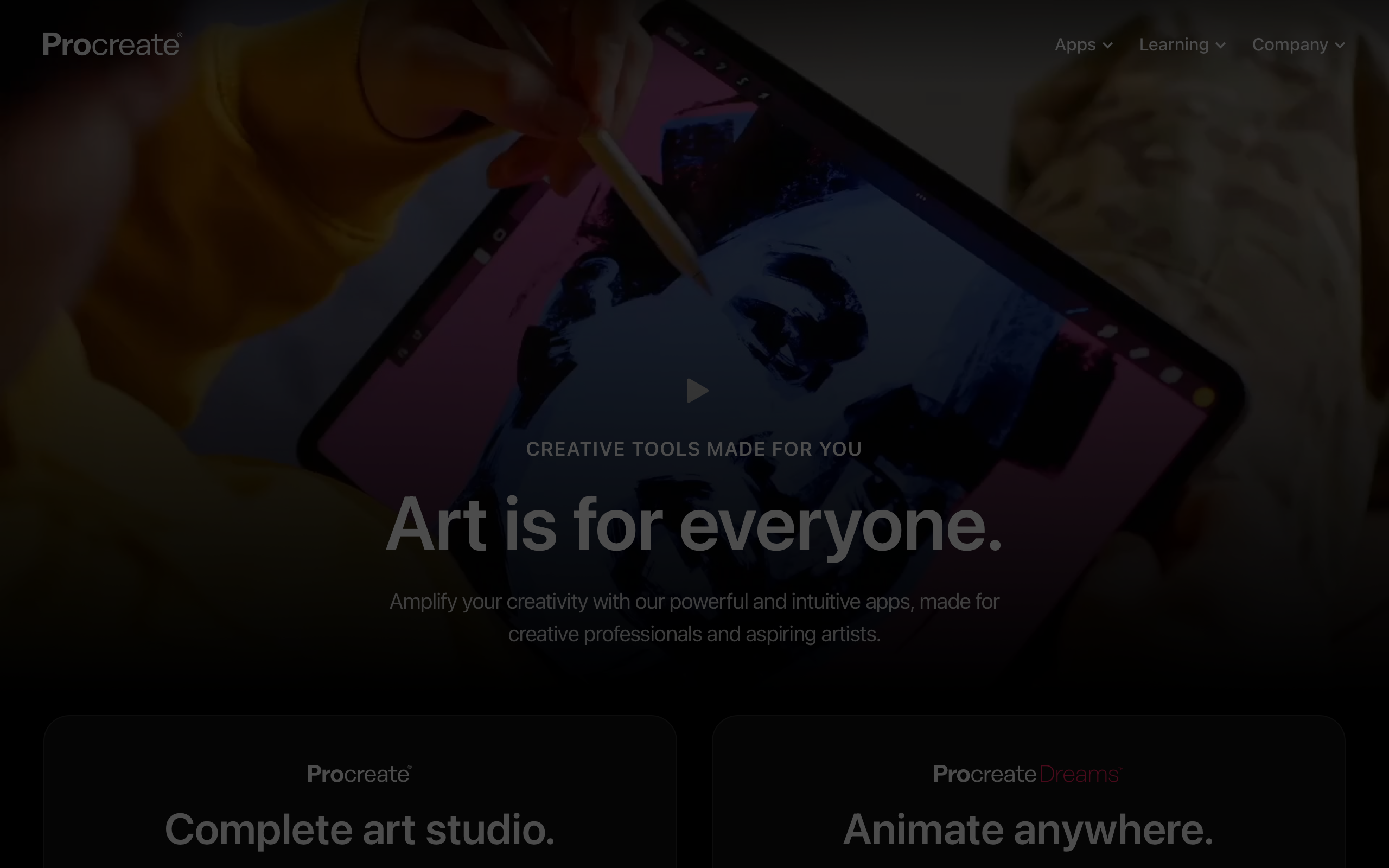
Procreate: Gesture-First Creative Tools
“We want to make the most powerful creative tools disappear so artists can focus on making art.” — James Cuda, Savage Interactive Founder
Procreate is the rare app that turned a hardware limitation into a design advantage. When Savage Interactive launched in 2011, the iPad was dismissed as a consumption device. Procreate proved that a touchscreen could be a professional creative canvas — not by porting desktop paradigms to mobile, but by inventing an entirely new interaction model built on gestures, pressure sensitivity, and the natural movements of a hand holding a stylus.
The result is an app that professional illustrators, concept artists, and animators use daily. Procreate has been downloaded over 30 million times, won multiple Apple Design Awards, and done it all without a subscription model. The design philosophy is uncompromising: every interaction must feel like the tool has disappeared and the artist is working directly on the canvas.
Why Procreate Matters
Savage Interactive, a small Australian studio, built Procreate as a passion project and grew it into the dominant creative app on iPad.
Key achievements:
- Apple Design Award winner (multiple years)
- iPad App of the Year
- 200+ handcrafted brushes with full customization
- 30+ million copies sold with zero subscription revenue
- Animation Assist brought frame-by-frame animation to iPad
- Industry standard for concept art, illustration, and storyboarding
- Runs at 120fps on ProMotion displays with sub-7ms latency
Key Takeaways
- Gestures must be discoverable AND invisible - Two-finger tap to undo is intuitive once learned, but never interrupts the creative flow
- Latency is a design decision - Sub-7ms pencil-to-pixel latency makes digital feel analog; anything slower breaks the illusion
- Touch targets on creative tools need different rules - A painting app’s hit areas must account for palm rejection, pencil angle, and the physics of a hand resting on glass
- Layer management for touch is a solved problem - Procreate’s swipe-based layer controls prove that complex operations do not require complex UI
- One-time purchase builds loyalty - Rejecting subscriptions was a design decision, not just a business one; it communicates respect for the creator’s relationship with their tools
Core Design Principles
1. The Invisible Interface
Procreate’s most important design achievement is what you do not see. In painting mode, the canvas takes up the entire screen. The toolbar is a thin strip that can be hidden. The brush cursor is the only persistent UI element. Everything else is accessed through gestures.
CANVAS MODE (Default state)
┌─────────────────────────────────────────┐
│ [Gallery] [+] [⚙] [🔧] [Layers] [Color]│
│                                         │
│                                         │
│                                         │
│                                         │
│          Pure canvas space              │
│          No chrome, no panels           │
│          Just your art                  │
│                                         │
│                                         │
│                                         │
│ ← Brush     ●                           │
│   Size    Opacity                       │
│                                         │
└─────────────────────────────────────────┘

COMPARISON: Traditional desktop painting app
┌─────────────────────────────────────────┐
│ [Menu Bar]                              │
│ [Toolbar] [Toolbar] [Toolbar]           │
│ ┌────┐┌─────────────────────┐┌────────┐│
│ │Tool││                     ││Layers  ││
│ │Pane││   Canvas             ││Panel   ││
│ │    ││   (60% of screen)   ││        ││
│ │    ││                     ││        ││
│ │    │├─────────────────────┤│        ││
│ │    ││ Brush Settings      ││        ││
│ └────┘└─────────────────────┘└────────┘│
│ [Status Bar]                            │
└─────────────────────────────────────────┘
The difference is stark. Procreate gives 95% of screen space to the canvas. Desktop apps often surrender 40% to toolbars, panels, and menus. This is possible because gestures replace buttons.
2. Gesture Grammar
Procreate’s gesture system follows a consistent grammar that, once internalized, makes every operation feel instantaneous.
GESTURE REFERENCE
──────────────────────────────────────────

UNDO / REDO
  Two-finger tap       → Undo
  Three-finger tap     → Redo
  Two-finger hold      → Rapid undo (scrub through history)

CANVAS MANIPULATION
  Two-finger pinch     → Zoom in/out
  Two-finger rotate    → Rotate canvas
  Two-finger drag      → Pan canvas
  Quick pinch to min   → Fit canvas to screen

SELECTION & TOOLS
  Three-finger swipe ↓ → Cut/Copy/Paste menu
  Touch and hold       → Eyedropper (sample color)
  Draw then hold       → QuickShape (line snaps to straight)

LAYERS
  Swipe right on layer → Select multiple layers
  Swipe left on layer  → Lock / Delete / Duplicate
  Pinch two layers     → Merge layers
  Long press + drag    → Reorder layer

COLOR
  Touch and hold swatch → Delete color
  Drag from color disc  → Color drop fill
The grammar has rules: two fingers for canvas operations, three fingers for clipboard operations, touch-and-hold for sampling/snapping. This consistency means artists learn the system, not individual shortcuts.
3. Palm Rejection as Invisible Engineering
On a canvas where you rest your hand while drawing, the system must distinguish between a palm, a finger tap, a finger gesture, and an Apple Pencil stroke. Procreate’s palm rejection is so reliable that artists forget it exists — which is the point.
INPUT DISCRIMINATION HIERARCHY
──────────────────────────────────────────

Priority 1: Apple Pencil
  → Always treated as drawing input
  → Pressure, tilt, and azimuth all captured
  → Sub-7ms latency to pixel

Priority 2: Finger gestures (recognized patterns)
  → Two-finger pinch/rotate/pan
  → Two-finger tap (undo)
  → Three-finger tap (redo)
  → Recognized within 50ms

Priority 3: Single finger touch
  → Treated as smudge/paint IF "finger painting" enabled
  → Otherwise treated as canvas interaction
  → Never confused with resting palm

Rejected: Palm contact
  → Large contact area + low pressure + edge of hand
  → Rejected within first touch frame
  → No mark made, no gesture triggered
The engineering is complex, but the design outcome is simple: put your hand on the screen and draw. The tool disappears.
Design Patterns Worth Stealing
Pressure Curves and Brush Customization
Procreate’s brush engine is built on pressure curves that map Apple Pencil input to brush behavior. The curve editor itself is a design lesson in making complex parameters tangible.
PRESSURE CURVE EDITOR
──────────────────────────────────────────

  Output (Brush effect)
  100% │            ╱
       │          ╱
       │        •      ← Drag control points
       │      ╱
   50% │    ╱
       │  •
       │╱
    0% └──────────────────
       0%    50%    100%
       Input (Pencil pressure)

LINEAR CURVE (default):
  Light press → thin line
  Hard press  → thick line
  Proportional response

S-CURVE (for lettering):
  Light press → very thin (hairline)
  Medium      → jumps to medium thickness
  Hard press  → plateaus at max
  More control in the middle range

HEAVY CURVE (for sketching):
  Light press → already medium thickness
  Minimal variation with pressure
  Consistent line weight
/* Web equivalent: SVG-based pressure curve editor */
.pressure-curve-editor {
    position: relative;
    width: 200px;
    height: 200px;
    background: #1a1a2e;
    border: 1px solid #333;
    border-radius: 8px;
    overflow: hidden;
}

.pressure-curve-editor .grid-line {
    stroke: #ffffff10;
    stroke-width: 1;
}

.pressure-curve-editor .curve-path {
    fill: none;
    stroke: #5ce1e6;
    stroke-width: 2;
    stroke-linecap: round;
}

.pressure-curve-editor .control-point {
    width: 12px;
    height: 12px;
    background: #fff;
    border-radius: 50%;
    cursor: grab;
    position: absolute;
    transform: translate(-50%, -50%);
    box-shadow: 0 0 8px rgba(92, 225, 230, 0.5);
}

.pressure-curve-editor .control-point:active {
    cursor: grabbing;
    transform: translate(-50%, -50%) scale(1.2);
}

/* Fill below the curve */
.pressure-curve-editor .curve-fill {
    fill: rgba(92, 225, 230, 0.08);
}
Layer Management for Touch
Procreate solved the challenge of managing dozens of layers on a touchscreen. The layer panel uses swipe gestures instead of tiny buttons, and merging is a physical pinch between two layer rows.
LAYER PANEL
┌─────────────────────────────────┐
│ Layers                    [+]   │
│                                 │
│ ┌─────────────────────────────┐ │
│ │ ☑ Layer 8 (Details)     N   │ │ ← Blend mode: Normal
│ │   [Thumbnail preview]  100% │ │ ← Opacity slider
│ ├─────────────────────────────┤ │
│ │ ☑ Layer 7 (Highlights)  S   │ │ ← Blend mode: Screen
│ │   [Thumbnail preview]   80% │ │
│ ├─────────────────────────────┤ │
│ │ ☑ Layer 6 (Shadows)     M   │ │ ← Blend mode: Multiply
│ │   [Thumbnail preview]   60% │ │
│ ├─────────────────────────────┤ │
│ │ ☑ Layer 5 (Color)       N   │ │ ← Swipe left: Lock/Delete
│ │   [Thumbnail preview]  100% │ │ ← Swipe right: Multi-select
│ ├─────────────────────────────┤ │ ← Pinch these two: Merge
│ │ ☑ Layer 4 (Line art)    N   │ │
│ │   [Thumbnail preview]  100% │ │
│ └─────────────────────────────┘ │
│                                 │
│ Background color: [■ #f5f0e8]  │
└─────────────────────────────────┘

GESTURES:
  Tap thumbnail    → Toggle visibility
  Tap layer name   → Rename
  Swipe left       → Lock | Duplicate | Delete
  Swipe right      → Select for multi-layer operations
  Two-finger tap   → Toggle alpha lock
  Long press+drag  → Reorder
  Pinch two rows   → Merge layers
The pinch-to-merge gesture is particularly elegant. It maps the physical metaphor of squeezing two things together onto the digital operation of combining layers. No confirmation dialog — just pinch, and they merge. Undo is always two-finger-tap away.
Animation Assist
Procreate’s Animation Assist turns the layer stack into a frame-by-frame timeline. The design reuses existing concepts (layers are frames) rather than introducing an entirely new paradigm.
ANIMATION ASSIST MODE
┌─────────────────────────────────────────┐
│                                         │
│     [Canvas with onion skinning]        │
│                                         │
│     Current frame in full opacity       │
│     Previous frame at 25% (red tint)    │
│     Next frame at 25% (green tint)      │
│                                         │
├─────────────────────────────────────────┤
│ ◀ ▶ ● ○ ○ ○ ○ ○ ○ ○ ○ ○ ○ ▶▶         │
│ ↑   ↑                       ↑           │
│ Play Current frame          FPS: 12     │
│      (highlighted)                      │
│                                         │
│ [Onion Skin] [Settings] [Add Frame]    │
└─────────────────────────────────────────┘

ONION SKIN SETTINGS
  Frames shown:  1-4 previous, 1-4 next
  Opacity:       10%-80% per frame
  Color:         Red (past) / Green (future)
  Blend:         Normal or Multiply
The onion skinning uses red for past frames and green for future frames — a convention borrowed from traditional animation light tables. Artists who learned on paper immediately understand the system.
Export Workflows
Procreate supports exporting to every major format, but the export UI is designed around the artist’s intent rather than technical specifications.
SHARE MENU (Intent-based)
┌─────────────────────────────────────────┐
│ Share as...                             │
│                                         │
│ ┌─────────┐ ┌─────────┐ ┌─────────┐   │
│ │Procreate│ │  PSD    │ │  PDF    │   │
│ │  .pro   │ │Photoshop│ │  Print  │   │
│ └─────────┘ └─────────┘ └─────────┘   │
│ ┌─────────┐ ┌─────────┐ ┌─────────┐   │
│ │  JPEG   │ │  PNG    │ │  TIFF   │   │
│ │  Share  │ │  Web    │ │  Archiv │   │
│ └─────────┘ └─────────┘ └─────────┘   │
│                                         │
│ For animations:                         │
│ ┌─────────┐ ┌─────────┐ ┌─────────┐   │
│ │  GIF    │ │  MP4    │ │  PNG    │   │
│ │Animated │ │  Video  │ │Sequence │   │
│ └─────────┘ └─────────┘ └─────────┘   │
└─────────────────────────────────────────┘
PSD export preserves layers, blend modes, and masks — meaning Procreate can be a starting tool in a workflow that finishes on desktop. This interoperability is a design choice that respects the artist’s existing process rather than demanding they abandon it.
The Verdict
Procreate succeeded by rejecting the assumption that professional creative tools require professional creative tool interfaces. Instead of cramming Photoshop’s 30 years of accumulated UI onto a touchscreen, Savage Interactive asked what drawing on glass should actually feel like and built outward from that question.
The gesture grammar is the foundation. Every decision — from palm rejection to layer pinch-merging to QuickShape — serves the principle that the interface should vanish and leave the artist alone with the canvas. Sub-7ms latency is not a spec sheet number; it is the difference between “drawing on a screen” and “drawing.”
Best for learning: How to design gesture-based interaction systems for creative tools. Study the two-finger/three-finger grammar consistency, the pressure curve editor as a model for making complex parameters tangible, and how layer management was reimagined for touch without losing professional capability.
Frequently Asked Questions
How does Procreate achieve sub-7ms pencil latency?
Procreate uses Apple’s predictive touch API combined with Metal rendering to minimize the gap between pencil contact and pixel response. The app predicts where the stroke is heading based on velocity and angle, rendering predicted pixels ahead of the actual touch data. When actual data arrives, the prediction is corrected seamlessly. This prediction pipeline, combined with ProMotion’s 120Hz refresh, creates the illusion of zero latency.
Why did Procreate reject a subscription model?
Savage Interactive’s position is that creative tools should be owned, not rented. A one-time purchase creates a different relationship between the artist and the tool — one of ownership rather than obligation. This decision also means Procreate must deliver enough value in each major update to drive new sales rather than relying on recurring revenue from existing users. The result is updates that genuinely advance the tool rather than incremental feature gating.
How does QuickShape work?
When an artist draws a shape and holds the pencil at the end of the stroke, Procreate recognizes the geometry and snaps it to a clean version. A wobbly circle becomes a perfect circle. A rough line becomes perfectly straight. A messy rectangle snaps to perpendicular corners. The hold duration is the trigger — it distinguishes intentional shape-making from fast sketching. The original stroke is kept in undo history, so the artist can always go back.
How does Procreate handle the Apple Pencil’s tilt and azimuth?
Procreate maps the pencil’s tilt angle and rotational azimuth to brush parameters. A pencil brush held at a steep angle produces thin, precise lines. The same brush held at a shallow angle produces wide, shading strokes — exactly like a real pencil. Each brush can customize how it responds to tilt and azimuth through the brush engine settings, allowing artists to create tools that behave like specific physical media.
What makes Procreate’s layer system different from desktop apps?
Procreate’s layer system has the same capabilities as desktop apps — blend modes, opacity, alpha lock, clipping masks, groups — but the interaction model is entirely gesture-based. There are no right-click menus or tiny icon buttons. Swipe, pinch, tap, and long-press replace every traditional control. The maximum layer count is limited by canvas resolution and device RAM, which Procreate communicates upfront when creating a new canvas.











