Framer:從原型到生產
Framer如何從原型庫演變為無程式碼建站工具:視覺斷點、元件變體、CMS架構和AI線框圖。
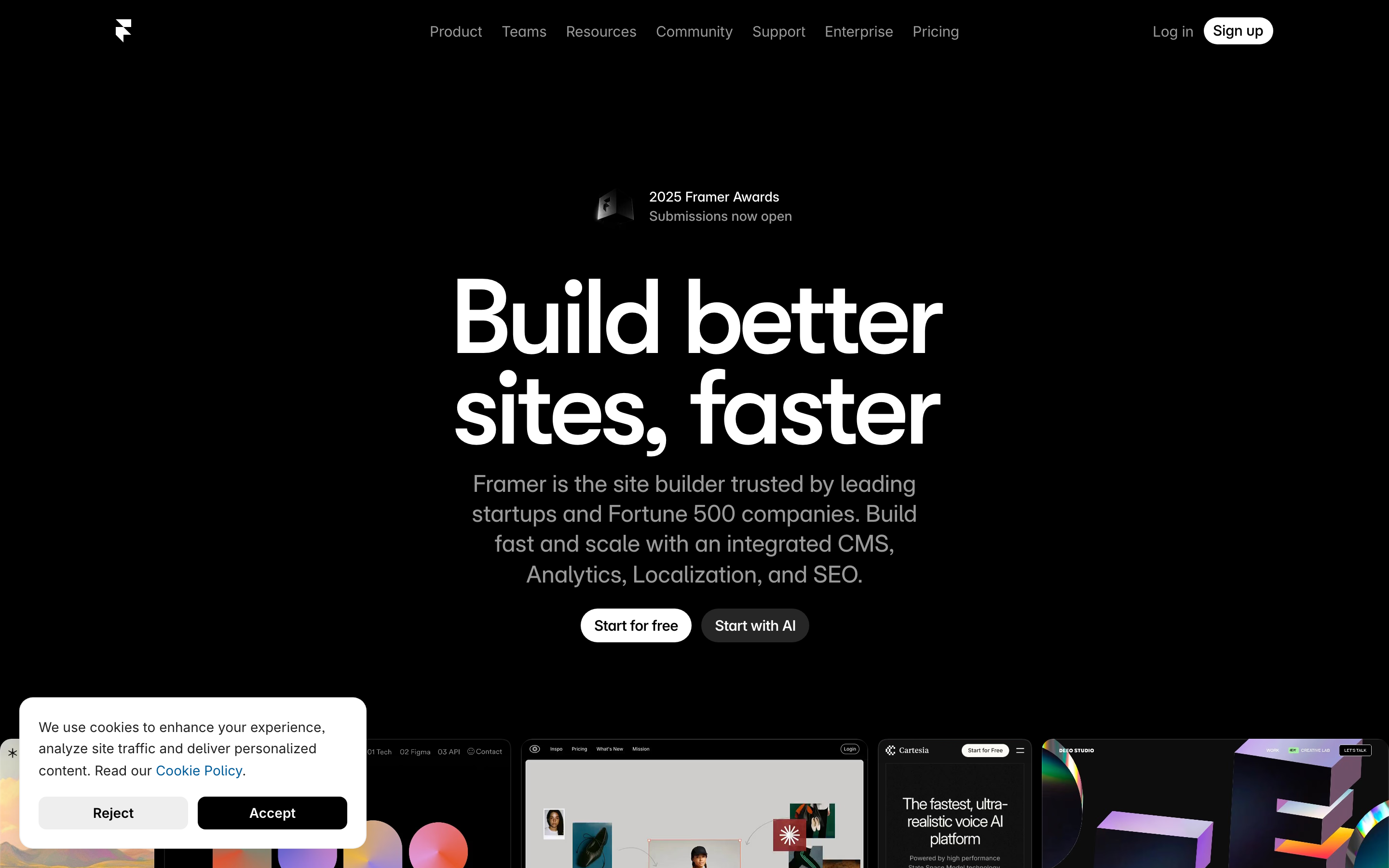
「設計與開發之間不應該存在鴻溝。」— Koen Bok,Framer 共同創辦人
Framer 代表了設計工具的完整演進:從 JavaScript 原型製作函式庫(2014)到視覺化 IDE(Framer X,2018)再到完整的無程式碼網站建構工具(2022+)。它的發展歷程教會我們如何在保持核心理念的同時適應使用者需求。
為什麼 Framer 重要
Framer 透過徹底消除「交接問題」來解決它。設計師不再需要創建讓開發人員重新建構的模型,Framer 直接輸出可用於生產環境的網站。
主要成就: - 完全彌合了設計到程式碼的鴻溝 - 讓響應式設計變得視覺化且直觀 - 建立了蓬勃發展的模板市集生態系統 - 在不放棄設計原則的情況下整合 AI - 於 2025 年 8 月以 20 億美元估值募集 1 億美元
重點摘要
- 轉型但不放棄使命 - Framer 從 CoffeeScript 函式庫發展到 React IDE 再到無程式碼建構工具,但核心使命從未改變:消除設計到開發的鴻溝
- 將技術概念視覺化 - 響應式斷點、flexbox 和 CMS 結構描述在以可拖曳的控制柄和視覺編輯器呈現時變得直觀易懂
- AI 作為鷹架而非解決方案 - Wireframer 生成結構以跳過面對空白畫布的焦慮;人類負責添加創意和精緻化
- 屬性控制優於複製分支 - 與其為變體複製元件,不如公開可改變配置的控制項,同時維持單一來源
- 生產輸出驗證設計 - 當設計工具輸出生產程式碼時,就不會有「這不是我設計的」這種交接時刻
演進故事
理解 Framer 的演進揭示了成功產品如何適應變化:
2014 (Framer.js)          2018 (Framer X)           2022+ (Framer Sites)
┌──────────────────┐      ┌──────────────────┐      ┌──────────────────┐
│                  │      │                  │      │                  │
│   Code-First     │  →   │  Visual + Code   │  →   │   Visual-First   │
│   Prototyping    │      │  React Components│      │   Production     │
│                  │      │                  │      │                  │
│ • CoffeeScript   │      │ • TypeScript     │      │ • No code needed │
│ • Animation lib  │      │ • IDE-like       │      │ • Built-in CMS   │
│ • Designer tools │      │ • Component sys  │      │ • AI generation  │
│                  │      │                  │      │                  │
└──────────────────┘      └──────────────────┘      └──────────────────┘

Audience: Designers    →   Design Engineers   →    Everyone
          who code         who design             who needs websites
關鍵洞察:每次轉型都擴大了受眾範圍,同時維持核心使命:消除設計與生產之間的鴻溝。
模式庫
1. 視覺化斷點系統
Framer 將響應式設計從程式碼轉變為拖曳控制柄,為這個傳統上技術性的概念帶來突破性的使用者體驗。
傳統 CSS 方法:
/* 開發人員必須想像每個斷點 */
@media (max-width: 768px) {
  .hero { flex-direction: column; }
}
@media (max-width: 480px) {
  .hero { padding: 16px; }
}
Framer 的視覺化方法:
┌─────────────────────────────────────────────────────────────────────────┐
│  Breakpoints                                                             │
│  ┌─────────────────────────────────────────────────────────────────────┐ │
│  │ Desktop (1440)    │ Tablet (768)      │ Mobile (375)               │ │
│  │ ────────────────────────┬─────────────────────┬──────────────────── │ │
│  │                    ◀ drag ▶             ◀ drag ▶                    │ │
│  └─────────────────────────────────────────────────────────────────────┘ │
│                                                                          │
│  Preview                                                                 │
│  ┌──────────────────────────────────────────────┐                       │
│  │                                              │                       │
│  │        Hero Section                          │  ← 當你拖曳時         │
│  │        ────────────                          │    版面即時更新       │
│  │                                              │                       │
│  │        [Button]                              │                       │
│  │                                              │                       │
│  └──────────────────────────────────────────────┘                       │
└─────────────────────────────────────────────────────────────────────────┘
設計原則的運用: - 直接操作優於抽象配置 - 即時回饋消除猜測 - 視覺呈現符合心智模型
實作模式:
// Breakpoint data structure
const breakpoints = [
  { name: 'Desktop', width: 1440, isDefault: true },
  { name: 'Tablet', width: 768 },
  { name: 'Mobile', width: 375 },
];

// Component stores styles per breakpoint
const componentStyles = {
  base: { display: 'flex', gap: 24 },
  overrides: {
    768: { flexDirection: 'column', gap: 16 },
    375: { padding: 16 },
  }
};

// Merge styles for current width
function getStylesForWidth(width) {
  let styles = { ...componentStyles.base };

  for (const [breakpoint, overrides] of Object.entries(componentStyles.overrides)) {
    if (width <= parseInt(breakpoint)) {
      styles = { ...styles, ...overrides };
    }
  }

  return styles;
}
2. 主元件/實例元件模式
與 Figma 類似,Framer 使用主元件-實例模型。但 Framer 透過互動式變體和屬性控制進一步擴展了它。
┌─ Primary Component ─────────────────────────────────────────────────┐
│                                                                     │
│  Component Canvas                                                   │
│  ┌────────────────────────────────────────────────────────────────┐ │
│  │                                                                │ │
│  │   Default State        Hover State          Pressed State      │ │
│  │   ┌──────────────┐    ┌──────────────┐    ┌──────────────┐    │ │
│  │   │   Button     │ →  │   Button     │ →  │   Button     │    │ │
│  │   │ bg: #3B82F6  │    │ bg: #2563EB  │    │ bg: #1D4ED8  │    │ │
│  │   │ scale: 1     │    │ scale: 1.02  │    │ scale: 0.98  │    │ │
│  │   └──────────────┘    └──────────────┘    └──────────────┘    │ │
│  │                                                                │ │
│  │   Transitions: spring(stiffness: 500, damping: 30)            │ │
│  │                                                                │ │
│  └────────────────────────────────────────────────────────────────┘ │
│                                                                     │
│  Property Controls                                                  │
│  ├─ Label: [text input]                                            │
│  ├─ Variant: [default ▼] [hover] [pressed]                         │
│  ├─ Size: [small] [medium ●] [large]                               │
│  └─ Icon: [none ▼]                                                 │
│                                                                     │
└─────────────────────────────────────────────────────────────────────┘

                            ↓ 實例繼承所有變體

┌─ Page Canvas ───────────────────────────────────────────────────────┐
│                                                                     │
│    [Button Instance 1]   [Button Instance 2]   [Button Instance 3]  │
│     Label: "Submit"       Label: "Cancel"       Label: "Learn More" │
│     Size: medium          Size: small           Size: large         │
│     Icon: check           Icon: none            Icon: arrow         │
│                                                                     │
└─────────────────────────────────────────────────────────────────────┘
Property Controls API:
// Framer component with property controls
import { addPropertyControls, ControlType } from "framer"

function Button({ label, size, icon }) {
  const styles = sizeStyles[size];

  return (
    <motion.button
      className="button"
      style={styles}
      whileHover={{ scale: 1.02 }}
      whileTap={{ scale: 0.98 }}
    >
      {icon && <Icon name={icon} />}
      {label}
    </motion.button>
  );
}

// These appear in the right panel when component is selected
addPropertyControls(Button, {
  label: {
    type: ControlType.String,
    title: "Label",
    defaultValue: "Button",
  },
  size: {
    type: ControlType.Enum,
    title: "Size",
    options: ["small", "medium", "large"],
    defaultValue: "medium",
  },
  icon: {
    type: ControlType.Enum,
    title: "Icon",
    options: ["none", "check", "arrow", "plus"],
    defaultValue: "none",
  },
});
核心洞見:屬性控制讓元件無需分支即可重複使用。修改屬性,而非元件本身。
3. 內建 CMS 架構
Framer 的 CMS 將內容視為結構化資料,流入視覺元件中。
┌─ CMS Collection: Blog Posts ────────────────────────────────────────┐
│                                                                     │
│  Schema                                                             │
│  ├─ title: String (required)                                       │
│  ├─ slug: Slug (auto-generated from title)                         │
│  ├─ author: Reference → Authors                                    │
│  ├─ publishDate: Date                                              │
│  ├─ coverImage: Image                                              │
│  ├─ content: Rich Text                                             │
│  └─ tags: Multi-reference → Tags                                   │
│                                                                     │
│  Entries                                                            │
│  ┌─────────────────────────────────────────────────────────────────┐ │
│  │ Title              │ Author     │ Date       │ Status           │ │
│  ├────────────────────┼────────────┼────────────┼──────────────────┤ │
│  │ Design Systems     │ @jane      │ Jan 15     │ ● Published      │ │
│  │ Component Patterns │ @john      │ Jan 12     │ ○ Draft          │ │
│  │ Animation Guide    │ @jane      │ Jan 10     │ ● Published      │ │
│  └─────────────────────────────────────────────────────────────────┘ │
│                                                                     │
└─────────────────────────────────────────────────────────────────────┘

                    ↓ CMS data flows into components

┌─ Collection Page Template ──────────────────────────────────────────┐
│                                                                     │
│  ┌─ Blog Card (connected to CMS) ─────────────────────────────────┐ │
│  │                                                                │ │
│  │  ┌──────────────┐                                              │ │
│  │  │ {coverImage} │  {title}                                     │ │
│  │  │              │  {author.name} · {publishDate}               │ │
│  │  │              │                                              │ │
│  │  └──────────────┘  {tags.map(tag => <Tag />)}                  │ │
│  │                                                                │ │
│  └────────────────────────────────────────────────────────────────┘ │
│                                                                     │
│  This card repeats for each CMS entry                               │
│                                                                     │
└─────────────────────────────────────────────────────────────────────┘
設計原則: - 內容與呈現分離 - 視覺化資料綁定(無需撰寫程式碼) - 自動 SEO(從 CMS 欄位產生 meta 標籤)
4. AI 輔助設計(Wireframer)
Framer 的 2025 AI 功能展示了品味優雅的 AI 整合:AI 產生起點,人類進行精煉。
┌─ Wireframer ────────────────────────────────────────────────────────┐
│                                                                     │
│  Prompt: "Landing page for a SaaS product with pricing table"      │
│                                                                     │
│  [Generate]                                                         │
│                                                                     │
├─────────────────────────────────────────────────────────────────────┤
│                                                                     │
│  Generated Layout (editable wireframe)                              │
│  ┌─────────────────────────────────────────────────────────────────┐ │
│  │  ╔══════════════════════════════════════════════════════════╗  │ │
│  │  ║  [Logo]              Features  Pricing  About   [CTA]    ║  │ │
│  │  ╚══════════════════════════════════════════════════════════╝  │ │
│  │                                                                │ │
│  │  ┌────────────────────────────────────────────────────────┐   │ │
│  │  │               Hero Section                              │   │ │
│  │  │               [Headline placeholder]                    │   │ │
│  │  │               [Subhead placeholder]                     │   │ │
│  │  │               [CTA Button]  [Secondary]                 │   │ │
│  │  └────────────────────────────────────────────────────────┘   │ │
│  │                                                                │ │
│  │  ┌─────────────┐ ┌─────────────┐ ┌─────────────┐              │ │
│  │  │  Starter    │ │  Pro ★      │ │  Enterprise │              │ │
│  │  │  $9/mo      │ │  $29/mo     │ │  Custom     │              │ │
│  │  │  ──────     │ │  ──────     │ │  ──────     │              │ │
│  │  │  • Feature  │ │  • Feature  │ │  • Feature  │              │ │
│  │  │  • Feature  │ │  • Feature  │ │  • Feature  │              │ │
│  │  │  [Select]   │ │  [Select]   │ │  [Contact]  │              │ │
│  │  └─────────────┘ └─────────────┘ └─────────────┘              │ │
│  │                                                                │ │
│  └─────────────────────────────────────────────────────────────────┘ │
│                                                                     │
│  AI provides structure, human provides style                        │
│                                                                     │
└─────────────────────────────────────────────────────────────────────┘
AI 設計哲學: - 產生響應式版面,而非最終設計 - 輸出完全可編輯(非黑箱) - 跳過空白畫布焦慮,從結構開始 - 人類創意應用於 AI 框架之上
5. Auto-Layout 系統
Framer 的 auto-layout 與 Figma 相匹配,但可立即投入生產環境使用。
/* What designers configure visually */
.auto-layout {
  /* Direction */
  display: flex;
  flex-direction: row; /* or column */

  /* Spacing */
  gap: 16px; /* uniform */
  /* or gap: 16px 24px; for row/column */

  /* Alignment */
  justify-content: flex-start;
  align-items: center;

  /* Distribution */
  /* "Packed" = flex-start */
  /* "Space between" = space-between */
  /* "Space around" = space-around */

  /* Padding (independent per side) */
  padding: 24px 32px 24px 32px;
}

/* Children behavior */
.auto-layout > .child {
  /* "Fill" = flex: 1 */
  /* "Hug" = flex: 0 0 auto */
  /* "Fixed" = width: 200px */
}
視覺編輯器對應:
┌─ Auto-Layout Panel ─────────────────────────────────────────────────┐
│                                                                     │
│  Direction      ┌───┐ ┌───┐                                        │
│                 │ → │ │ ↓ │                                        │
│                 └───┘ └───┘                                        │
│                                                                     │
│  Alignment      ┌───────────────┐                                   │
│                 │ ⬜ ⬜ ⬜        │  (9-point grid)                   │
│                 │ ⬜ ⬛ ⬜        │                                   │
│                 │ ⬜ ⬜ ⬜        │                                   │
│                 └───────────────┘                                   │
│                                                                     │
│  Gap            [16] px                                             │
│                                                                     │
│  Padding        [24] [32] [24] [32]  (top, right, bottom, left)    │
│                                                                     │
│  Distribution   [Packed ▼]                                          │
│                                                                     │
└─────────────────────────────────────────────────────────────────────┘
視覺設計系統
畫布外框
:root {
  /* Canvas background */
  --canvas-bg: #1E1E1E;
  --canvas-grid: rgba(255, 255, 255, 0.03);

  /* Selection */
  --selection-color: #0099FF;
  --selection-handle: #FFFFFF;

  /* Panels */
  --panel-bg: #2D2D2D;
  --panel-border: rgba(255, 255, 255, 0.08);

  /* Text */
  --text-primary: #FFFFFF;
  --text-secondary: #9B9B9B;
  --text-placeholder: #6B6B6B;

  /* Accents */
  --accent-primary: #0099FF;
  --accent-success: #00D084;
  --accent-warning: #FFBB00;
  --accent-error: #FF5555;
}
字型排版(UI)
:root {
  --font-ui: 'Inter', -apple-system, sans-serif;
  --font-mono: 'JetBrains Mono', monospace;

  /* Sizes */
  --text-xxs: 10px;
  --text-xs: 11px;
  --text-sm: 12px;
  --text-base: 13px;
  --text-lg: 14px;

  /* Panel labels */
  --label-size: var(--text-xs);
  --label-weight: 600;
  --label-color: var(--text-secondary);
  --label-spacing: 0.02em;
}

.panel-label {
  font-family: var(--font-ui);
  font-size: var(--label-size);
  font-weight: var(--label-weight);
  color: var(--label-color);
  letter-spacing: var(--label-spacing);
  text-transform: uppercase;
}
動畫模式
面板過渡效果
/* Slide-in panels */
.panel {
  transform: translateX(100%);
  opacity: 0;
  transition:
    transform 200ms cubic-bezier(0.16, 1, 0.3, 1),
    opacity 150ms ease-out;
}

.panel.open {
  transform: translateX(0);
  opacity: 1;
}
選取回饋
/* Selection box animation */
.selection-box {
  border: 1px solid var(--selection-color);
  background: rgba(0, 153, 255, 0.1);
  animation: selection-appear 100ms ease-out;
}

@keyframes selection-appear {
  from {
    opacity: 0;
    transform: scale(0.98);
  }
  to {
    opacity: 1;
    transform: scale(1);
  }
}

/* Resize handles */
.resize-handle {
  width: 8px;
  height: 8px;
  background: var(--selection-handle);
  border: 1px solid var(--selection-color);
  border-radius: 1px;
  transition: transform 100ms ease;
}

.resize-handle:hover {
  transform: scale(1.3);
}
對我們工作的啟示
1. 轉型但不背離使命
Framer 從程式碼轉向視覺化,但使命始終如一:消除設計與開發之間的鴻溝。
2. 將技術概念視覺化
斷點、flexbox 和 CMS schema 透過視覺化呈現變得直觀易懂。
3. AI 作為鷹架而非解決方案
Wireframer 生成結構;人類負責創意。AI 消除了空白畫布的焦慮,但不剝奪創作主導權。
4. 屬性控制項優於複製分支
與其複製元件,不如暴露控制項。同一個元件,不同的配置。
5. 產品級輸出驗證設計
當你的設計工具能輸出產品級程式碼時,就不會再有「這不是我設計的樣子」這種時刻。
常見問題
Framer 如何從原型製作函式庫演變為網站建構工具?
Framer 於 2014 年以 CoffeeScript 動畫函式庫起家,面向會寫程式的設計師。2018 年,Framer X 新增了支援 React 元件的視覺化 IDE,鎖定設計工程師群體。到了 2022 年,Framer 轉型為無程式碼網站建構工具,內建 CMS 和 AI 功能。每次演進都擴大了受眾群體,同時維持核心使命:消除設計與產品之間的落差。
Framer 的視覺化斷點系統與 CSS media queries 有何不同?
傳統響應式設計需要在撰寫程式碼時想像各個斷點的版面呈現。Framer 提供即時預覽,當你拖曳斷點控制桿時畫面會同步更新。你可以清楚看到設計在每個寬度下的響應效果。這種視覺化呈現方式符合設計師對響應式行為的思考模式,讓斷點變得直觀而非抽象。
Framer 屬性控制項如何運作?
當選取元件時,屬性控制項會在右側面板顯示可配置的選項。你不需要為每種變體複製一個按鈕元件,只需定義標籤、尺寸、圖示和樣式的控制項。設計師可以針對每個實例調整這些屬性,無需接觸程式碼。元件仍是單一真實來源,同時支援無限種配置。
Framer 的 CMS 與 WordPress 或其他 CMS 相比如何?
Framer 的 CMS 以視覺化為優先,直接整合在設計工具中。你定義 schema(標題、作者、日期、圖片),內容透過視覺化資料綁定流入頁面模板。不需要獨立的管理後台——內容編輯就在設計環境中完成。自動產生的 SEO、響應式圖片和網址 slug 都會自動處理。
Framer AI(Wireframer)實際上會生成什麼?
Wireframer 生成的是響應式版面結構,而非完成品設計。從「SaaS 定價頁面」這樣的提示,它會建立包含導覽列、主視覺區塊和定價卡片的 wireframe,並使用正確的自動版面配置和響應式斷點。輸出結果完全可編輯——每個元素都可以重新設計樣式、移動或替換。AI 提供鷹架;人類負責添加風格和內容。











