Flighty:恰到好處的數據可視化
Flighty如何獲得Apple Design Award 2023:15種智慧狀態、Live Activities和機場風格資料視覺化。附SwiftUI實作模式。
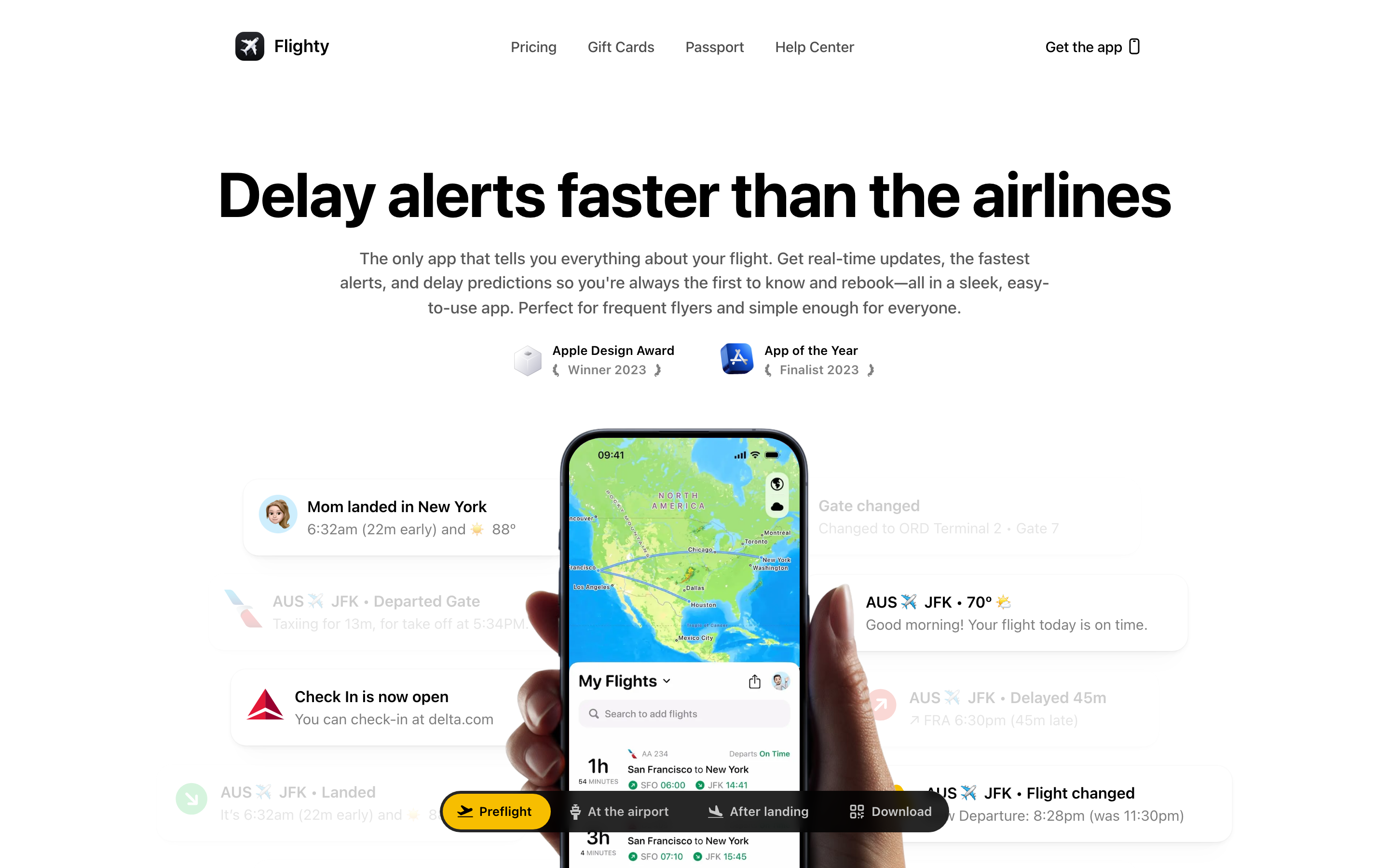
「我們希望 Flighty 運作得如此順暢,以至於一切都顯得理所當然。」
Flighty 將複雜的航班資料轉化為一目瞭然的資訊。作為 2023 年 Apple Design Award 互動設計獎得主,它堪稱資料密集型介面設計的教科書級範例——以數十年機場標誌系統為靈感,呈現出沉穩、清晰的設計語言。
為何 Flighty 值得關注
Flighty 由前 Apple 員工 Ryan Jones 在一次令人沮喪的航班延誤後創立,如今已成為 iOS 資料視覺化的業界標竿。
主要成就: - 2023 年 Apple Design Award(互動設計) - 2023 年 iPhone 年度最佳 App 入圍 - 首款完整運用 Live Activities 的應用程式 - 15 種情境感知智慧狀態 - 業界領先的延誤預測功能
核心要點
- 借鑑經過驗證的系統 - 機場航班顯示板已經過 50 多年的優化;Flighty 將這套視覺語言適配到行動裝置上
- 情境感知狀態降低認知負荷 - 15 種智慧狀態確保使用者在旅程的每個階段都能看到所需的資訊
- 「理所當然」就是目標 - 如果應用程式能夠毫無阻礙地運作,那就是成功
- 打包、包裝、著色你的資料 - 呈現洞見而非原始數據;用顏色標示狀態,讓使用者無需費心解讀
- 離線優先應對不穩定的網路連線 - 航班會進入離線狀態;應用程式必須能在無網路環境下運作,尤其是在飛行途中
核心設計理念
以機場標誌系統作為設計語言
Flighty 的設計建立在一個現實世界的類比上:機場航班顯示板。
AIRPORT DEPARTURE BOARD (50+ years of refinement)
───────────────────────────────────────────────────────────────────
FLIGHT   DESTINATION      GATE    TIME    STATUS
UA 1234  San Francisco    B22     14:30   ON TIME
DL 567   New York JFK     C15     15:00   DELAYED
AA 890   Chicago O'Hare   A08     15:45   BOARDING

One line per flight. Essential info only. Decades of optimization.

FLIGHTY'S TRANSLATION
───────────────────────────────────────────────────────────────────
[Flight card with same information density]
[Color-coded status]
[Time-appropriate details]
關鍵洞見:「那些機場顯示板每個航班只用一行,這是很好的設計指引——他們花了 50 年時間才弄清楚什麼才是重要的。」
旅行情境感知
Flighty 深知旅行充滿壓力。設計必須降低認知負荷,而非增加負擔。
設計原則: 1. 最重要的資訊置於首屏之上 2. 採用漸進式揭露呈現細節 3. 狀態以顏色區分(綠色 = 正常、黃色 = 警示、紅色 = 問題) 4. 資料經過「打包、包裝、著色」處理,使用者無需自行解讀
設計模式庫
1. 15 種智慧狀態
Flighty 的標誌性創新:15 種情境感知狀態,在正確的時間顯示正確的資訊。
狀態時間軸:
24 HOURS BEFORE
┌─────────────────────────────────────────┐
│ UA 1234 → SFO                           │
│ Tomorrow at 2:30 PM                     │
│ Confirmation: ABC123                    │
│ Head to Terminal 2                      │
└─────────────────────────────────────────┘

3 HOURS BEFORE
┌─────────────────────────────────────────┐
│ UA 1234 → SFO                           │
│ Gate B22 • Boards 2:00 PM               │
│ Leave for airport by 12:15 PM           │
│ [View full timeline →]                  │
└─────────────────────────────────────────┘

AT GATE
┌─────────────────────────────────────────┐
│ UA 1234 → SFO     [ON TIME]            │
│ Gate B22 • Boarding in 12 min           │
│ Seat 14A • Window                       │
│ [Your plane is here ✓]                  │
└─────────────────────────────────────────┘

WALKING TO PLANE
┌─────────────────────────────────────────┐
│ UA 1234 → SFO     [BOARDING]           │
│ Your seat: 14A (Window)                 │
│ ▓▓▓▓▓▓▓▓░░ 80% boarded                 │
└─────────────────────────────────────────┘

IN FLIGHT (offline)
┌─────────────────────────────────────────┐
│  SFO ──────●───────────── JFK           │
│            │                            │
│     2h 15m remaining                    │
│     Arrive ~5:45 PM local               │
└─────────────────────────────────────────┘

LANDED
┌─────────────────────────────────────────┐
│ ✓ Arrived at JFK                        │
│ Your gate: C15 → Connection gate: D22   │
│ 8 min walk • Terminal map [→]          │
└─────────────────────────────────────────┘
實作概念:
enum FlightState: CaseIterable {
    case farOut          // > 24 hours
    case dayBefore       // 24 hours
    case headToAirport   // ~3 hours
    case atAirport       // At terminal
    case atGate          // Gate area
    case boarding        // Boarding started
    case onBoard         // Seated
    case taxiing         // Moving to runway
    case inFlight        // Airborne
    case descending      // Approaching
    case landed          // Touched down
    case atGateDest      // Arrived at gate
    case connection      // Connecting flight
    case completed       // Trip done
    case delayed         // Any delay state
}

struct SmartStateEngine {
    func currentState(for flight: Flight, context: TravelContext) -> FlightState {
        let now = Date()
        let departure = flight.scheduledDeparture

        // Contextual factors
        let isAtAirport = context.currentLocation.isNear(flight.departureAirport)
        let isBoarding = flight.boardingStatus == .active
        let isAirborne = flight.status == .inFlight

        switch true {
        case isAirborne:
            return flight.altitude > 10000 ? .inFlight : .taxiing
        case isBoarding && isAtAirport:
            return .boarding
        case isAtAirport && departure.timeIntervalSinceNow < 3600:
            return .atGate
        case isAtAirport:
            return .atAirport
        case departure.timeIntervalSinceNow < 3 * 3600:
            return .headToAirport
        case departure.timeIntervalSinceNow < 24 * 3600:
            return .dayBefore
        default:
            return .farOut
        }
    }

    func displayContent(for state: FlightState, flight: Flight) -> StateContent {
        switch state {
        case .headToAirport:
            return StateContent(
                headline: "\(flight.number) → \(flight.destination.code)",
                primary: "Gate \(flight.gate) • Boards \(flight.boardingTime.formatted())",
                secondary: "Leave for airport by \(flight.recommendedDeparture.formatted())",
                action: "View full timeline"
            )
        case .inFlight:
            return StateContent(
                headline: flight.routeVisualization,
                primary: "\(flight.remainingTime.formatted()) remaining",
                secondary: "Arrive ~\(flight.estimatedArrival.formatted())",
                action: nil
            )
        // ... other states
        }
    }
}
2. 即時動態與動態島
Flighty 是第一款完整運用 iOS 16 即時動態功能的應用程式,為這項功能樹立了標準。
動態島狀態:
COMPACT(精簡模式)
╭──────────────────────────────────╮
│ [^] B22  │  *  │  2:30 -> 1h 45m │
╰──────────────────────────────────╯
  登機門    狀態      時間/時長

EXPANDED(長按展開)
╭────────────────────────────────────────╮
│  UA 1234 飛往舊金山                      │
│  ───────────────────────────────────   │
│  登機門 B22       登機時間 2:00 PM       │
│  座位 14A         準時 ✓                │
│                                        │
│  [開啟 Flighty]     [分享預計到達時間]    │
╰────────────────────────────────────────╯

IN-FLIGHT(支援離線)
╭──────────────────────────────────╮
│  SFO ●════════○──── JFK          │
│         2 小時 15 分              │
╰──────────────────────────────────╯
SwiftUI 實作模式:
import ActivityKit
import WidgetKit

struct FlightActivityAttributes: ActivityAttributes {
    public typealias ContentState = FlightStatus

    let flightNumber: String
    let origin: Airport
    let destination: Airport
    let gate: String
    let seat: String

    struct FlightStatus: Codable, Hashable {
        let departureTime: Date
        let arrivalTime: Date
        let status: Status
        let boardingStatus: BoardingStatus
        let progress: Double  // 0.0 到 1.0 表示飛行進度
        let phase: FlightPhase

        enum Status: String, Codable { case onTime, delayed, cancelled }
        enum BoardingStatus: String, Codable { case notStarted, boarding, closed }
        enum FlightPhase: String, Codable { case preBoarding, boarding, taxiing, inFlight, landed }
    }
}

struct FlightLiveActivity: Widget {
    var body: some WidgetConfiguration {
        ActivityConfiguration(for: FlightActivityAttributes.self) { context in
            // 鎖定畫面視圖
            LockScreenView(context: context)
        } dynamicIsland: { context in
            DynamicIsland {
                // 展開視圖
                DynamicIslandExpandedRegion(.leading) {
                    VStack(alignment: .leading) {
                        Text(context.attributes.flightNumber)
                            .font(.headline)
                        Text("to \(context.attributes.destination.city)")
                            .font(.caption)
                    }
                }
                DynamicIslandExpandedRegion(.trailing) {
                    VStack(alignment: .trailing) {
                        Text("Gate \(context.attributes.gate)")
                        Text(context.state.status.displayText)
                            .foregroundStyle(context.state.status.color)
                    }
                }
                DynamicIslandExpandedRegion(.bottom) {
                    if context.state.phase == .inFlight {
                        FlightProgressBar(progress: context.state.progress)
                    } else {
                        Text("Boards \(context.state.boardingTime.formatted())")
                    }
                }
            } compactLeading: {
                // 緊湊模式左側
                Text(context.attributes.gate)
                    .font(.caption)
            } compactTrailing: {
                // 緊湊模式右側
                Text(context.state.departureTime, style: .timer)
            } minimal: {
                // 最小化模式(多個活動同時存在時)
                Image(systemName: "airplane")
            }
        }
    }
}
3. 航班進度視覺化
Flighty 透過多種視覺隱喻呈現航班進度。
帶有飛機指示器的航線:
線性進度(主要)
───────────────────────────────────────────────────────────────────
SFO ════════════════●════════════════════════════════════ JFK
    [45 分鐘前起飛]    ↑ 您在這裡        [剩餘 2 小時 15 分鐘]

圓形進度(緊湊)
        ╭───────╮
       /    ●    \
      │     |     │    ← 進度弧順時針填充
      │     |     │
       \    ↓    /     剩餘 2 小時 15 分鐘
        ╰───────╯

熱力圖(終身統計)
[帶有不同粗細航線的地圖]
粗線 = 經常飛行的航線
細線 = 僅飛行過一次
SwiftUI 實作:
struct FlightProgressView: View {
    let progress: Double  // 0.0 到 1.0
    let origin: Airport
    let destination: Airport
    let remainingTime: TimeInterval

    var body: some View {
        GeometryReader { geometry in
            ZStack {
                // 航線
                Path { path in
                    let startX: CGFloat = 40
                    let endX = geometry.size.width - 40
                    let y = geometry.size.height / 2

                    path.move(to: CGPoint(x: startX, y: y))
                    path.addLine(to: CGPoint(x: endX, y: y))
                }
                .stroke(Color.secondary.opacity(0.3), lineWidth: 3)

                // 進度線
                Path { path in
                    let startX: CGFloat = 40
                    let endX = geometry.size.width - 40
                    let progressX = startX + (endX - startX) * progress
                    let y = geometry.size.height / 2

                    path.move(to: CGPoint(x: startX, y: y))
                    path.addLine(to: CGPoint(x: progressX, y: y))
                }
                .stroke(Color.accentColor, lineWidth: 3)

                // 起點標記
                Circle()
                    .fill(Color.secondary)
                    .frame(width: 8, height: 8)
                    .position(x: 40, y: geometry.size.height / 2)

                // 當前位置的飛機圖示
                Image(systemName: "airplane")
                    .foregroundStyle(Color.accentColor)
                    .position(
                        x: 40 + (geometry.size.width - 80) * progress,
                        y: geometry.size.height / 2
                    )

                // 目的地標記
                Circle()
                    .fill(Color.secondary)
                    .frame(width: 8, height: 8)
                    .position(x: geometry.size.width - 40, y: geometry.size.height / 2)

                // 標籤
                HStack {
                    Text(origin.code)
                        .font(.caption.bold())
                    Spacer()
                    Text(destination.code)
                        .font(.caption.bold())
                }
                .padding(.horizontal, 20)
            }
        }
        .frame(height: 60)
    }
}
4. 轉機助手
當你降落後有轉機航班時,Flighty 會同時顯示兩個登機門以及你的即時位置。
轉機視圖
┌─────────────────────────────────────────┐
│ 轉機時間:45 分鐘                        │
│                                         │
│ ┌─────────────────────────────────────┐ │
│ │                                     │ │
│ │   [航廈地圖]                         │ │
│ │                                     │ │
│ │   [*] 你 -> -> -> -> -> [>] D22     │ │
│ │   C15            步行 8 分鐘         │ │
│ │                                     │ │
│ └─────────────────────────────────────┘ │
│                                         │
│ [!] 轉機時間緊迫 - 請開始移動            │
└─────────────────────────────────────────┘
實作方式:
struct ConnectionAssistantView: View {
    let arrival: Flight
    let departure: Flight
    let userLocation: CLLocationCoordinate2D?

    var connectionTime: TimeInterval {
        departure.scheduledDeparture.timeIntervalSince(arrival.estimatedArrival)
    }

    var walkingTime: TimeInterval {
        // 根據登機門距離和一般步行速度計算
        TerminalMap.walkingTime(from: arrival.arrivalGate, to: departure.gate)
    }

    var isTight: Bool {
        connectionTime < walkingTime + 15 * 60  // 緩衝時間少於 15 分鐘
    }

    var body: some View {
        VStack(spacing: 16) {
            // 標題
            HStack {
                Text("Connection")
                    .font(.headline)
                Spacer()
                Text(connectionTime.formatted())
                    .font(.title2.bold())
                    .foregroundStyle(isTight ? .orange : .primary)
            }

            // 含路線的地圖
            TerminalMapView(
                from: arrival.arrivalGate,
                to: departure.gate,
                userLocation: userLocation
            )
            .frame(height: 200)
            .clipShape(RoundedRectangle(cornerRadius: 12))

            // 登機門資訊
            HStack {
                GateLabel(gate: arrival.arrivalGate, label: "Arrival")
                Spacer()
                Text("\(Int(walkingTime / 60)) min walk")
                    .font(.caption)
                    .foregroundStyle(.secondary)
                Spacer()
                GateLabel(gate: departure.gate, label: "Departure")
            }

            // Warning if tight
            if isTight {
                HStack {
                    Image(systemName: "exclamationmark.triangle.fill")
                        .foregroundStyle(.orange)
                    Text("Tight connection - start moving")
                        .font(.callout)
                }
                .padding()
                .background(Color.orange.opacity(0.1))
                .clipShape(RoundedRectangle(cornerRadius: 8))
            }
        }
        .padding()
    }
}
5. 護照與終身統計
Flighty 將旅行歷史轉化為精美、可分享的視覺化呈現。
PASSPORT PAGE
┌─────────────────────────────────────────┐
│           [^] FLIGHTY PASSPORT          │
│                                         │
│  [Custom artwork with travel themes]    │
│                                         │
│  ───────────────────────────────────    │
│  2024                                   │
│                                         │
│  47 flights                             │
│  89,234 miles                           │
│  23 airports                            │
│  12 countries                           │
│                                         │
│  Most visited: SFO (23 times)           │
│  Longest flight: SFO → SIN (8,447 mi)  │
│  ───────────────────────────────────    │
│                                         │
│  [Share] [View Details]                 │
└─────────────────────────────────────────┘
視覺設計系統
色彩調色盤
extension Color {
    // Status colors (airport-inspired)
    static let flightOnTime = Color(hex: "#10B981")    // Green
    static let flightDelayed = Color(hex: "#F59E0B")   // Amber
    static let flightCancelled = Color(hex: "#EF4444") // Red
    static let flightBoarding = Color(hex: "#3B82F6")  // Blue

    // UI colors
    static let flightPrimary = Color(hex: "#1F2937")
    static let flightSecondary = Color(hex: "#6B7280")
    static let flightBackground = Color(hex: "#F9FAFB")
    static let flightCard = Color(hex: "#FFFFFF")

    // Accent
    static let flightAccent = Color(hex: "#6366F1")    // Indigo
}
字體排版
struct FlightyTypography {
    // Flight numbers and gates (need to stand out)
    static let flightNumber = Font.system(size: 20, weight: .bold, design: .monospaced)
    static let gate = Font.system(size: 24, weight: .bold, design: .rounded)

    // Time displays
    static let time = Font.system(size: 18, weight: .medium, design: .monospaced)
    static let countdown = Font.system(size: 32, weight: .bold, design: .monospaced)

    // Status and labels
    static let status = Font.system(size: 14, weight: .semibold)
    static let label = Font.system(size: 12, weight: .medium)
    static let body = Font.system(size: 16, weight: .regular)
}
動畫哲學
有目的的動態效果
Flighty 的動畫服務於功能,而非裝飾。
// Status change animation
struct StatusBadge: View {
    let status: FlightStatus

    var body: some View {
        Text(status.displayText)
            .font(.caption.bold())
            .padding(.horizontal, 8)
            .padding(.vertical, 4)
            .background(status.color)
            .foregroundStyle(.white)
            .clipShape(Capsule())
            .contentTransition(.numericText())  // Smooth number changes
            .animation(.spring(response: 0.3), value: status)
    }
}

// Progress bar animation
struct AnimatedProgress: View {
    let progress: Double

    var body: some View {
        GeometryReader { geo in
            Rectangle()
                .fill(Color.accentColor)
                .frame(width: geo.size.width * progress)
                .animation(.linear(duration: 60), value: progress)  // 緩慢、持續的動畫
        }
    }
}
對我們工作的啟發
1. 現實世界的類比指引設計
機場標誌系統經過 50 多年的優化。從經過驗證的系統中借鑑。
2. 情境感知狀態降低認知負擔
15 種智慧狀態意味著使用者永遠不會看到無關的資訊。
3. 平淡無奇、一目了然才是目標
如果應用程式「就是能用」,那就成功了。摩擦就是失敗。
4. 打包、包裝、為資料上色
不要顯示原始資料。呈現洞見。用顏色標示狀態。
5. 行動裝置採用離線優先
航班會離線。應用程式必須在沒有網路連線的情況下運作。
常見問題
Flighty 的 15 種智慧狀態如何運作?
Flighty 監控您的航班狀態、位置和時間,自動顯示最相關的資訊。狀態從「還早」(起飛前 24 小時以上)到「前往機場」、「在登機門」、「登機中」、「飛行中」和「已降落」。每種狀態呈現不同的細節:早期顯示確認號碼、相關時顯示登機門資訊、飛行中顯示剩餘時間、降落後顯示轉機指引。
Flighty 的 Live Activities 實作有何特別之處?
Flighty 是第一個充分利用 iOS 16 Live Activities 和靈動島的應用程式。實作包括顯示登機門和倒數計時的精簡視圖、包含完整航班詳情的展開視圖,以及無需網路連線即可運作的離線飛行進度視覺化。設計將 Live Activities 視為主要介面,而非事後添加。
Flighty 如何處理離線情境?
Flighty 在起飛前下載航班資料並儲存於本地。飛行中的進度根據預定時間和已知的飛機性能持續更新。應用程式預先計算抵達時間、轉機時間和登機門資訊。當網路連線恢復時,資料會同步並更新任何變更。這種離線優先的方法至關重要,因為航班會有數小時處於無網路狀態。
為什麼 Flighty 以機場標誌作為設計靈感?
機場航班資訊看板經過 50 多年的改良,能在繁忙環境中快速向焦慮的旅客傳達航班資訊。它們採用每班航班一行、顏色編碼狀態、僅顯示必要資訊的方式。Flighty 將這套經過驗證的視覺語言調整至行動裝置,使用機場數十年來優化的密度、清晰度和狀態指示原則。
轉機助手如何計算緊湊的轉機時間?
轉機助手比較您的抵達時間與下一班航班的起飛時間,然後根據航廈內登機門之間的距離計算步行時間。它會考量一般步行速度和航廈佈局。如果緩衝時間低於 15 分鐘,應用程式會將其標記為緊湊轉機,並顯示即時地圖,包含您目前的位置、目的地登機門和步行路線。











