Figma: The Collaborative Canvas
How Figma built real-time multiplayer design: presence indicators, infinite canvas, Dev Mode, and design tokens. CSS and JS code included.
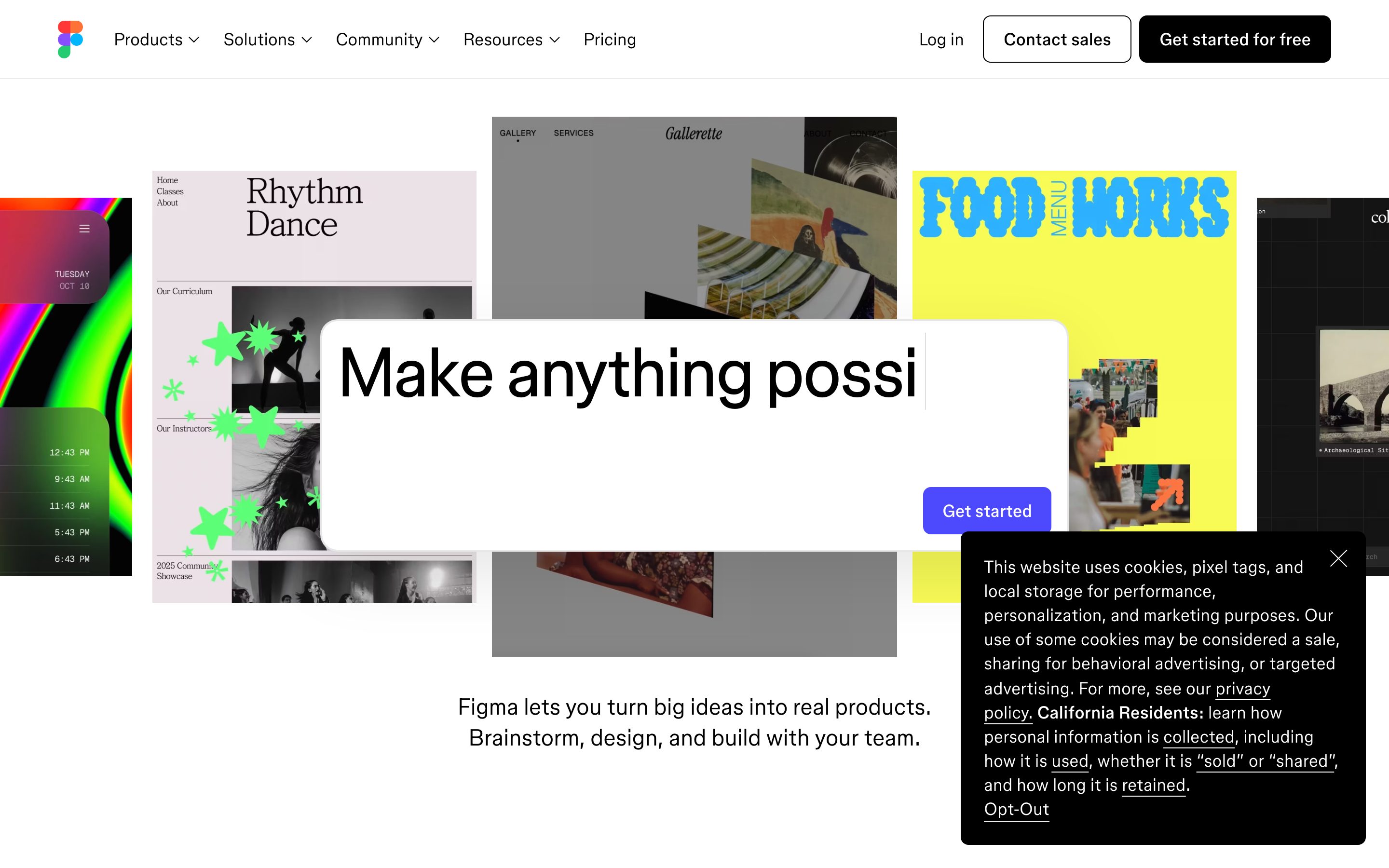
Figma: The Collaborative Canvas
“In the Figma way, we wanted to make AI multiplayer. Collaboration has always been at the heart of everything we do.” — Figma Team
Figma transformed design from a solitary craft into a team sport. As the first design tool with live collaborative editing, Figma proved that complex creative tools could be as fluid as Google Docs—while maintaining the precision designers demand.
Why Figma Matters
Figma didn’t just add multiplayer to design tools. It reimagined how design happens. By building collaboration into the foundation, Figma changed workflows, team dynamics, and the entire design-to-development pipeline.
Key achievements:
- First design tool with real-time multiplayer editing
- Pioneered the “infinite canvas” as a UI paradigm
- Made design systems accessible to every team
- Bridged design and development with Dev Mode
- Built a $20B creative empire on collaboration
Key Takeaways
- Multiplayer requires simplicity - Figma built a homegrown solution simpler than operational transforms because simpler systems are easier to debug and maintain
- Infinite canvas invites exploration - Unlike page-based tools, an open-ended canvas encourages iteration and prevents artificial constraints
- Context-aware interfaces reduce cognitive load - Toolbars and panels that adapt to selection show only relevant controls
- Design tokens bridge design and code - Variables with primitives → semantic → component layers create a shared language between designers and developers
- Dev Mode is a dedicated workspace - Separating developer tools from design tools respects different mental models and workflows
Core Design Principles
1. Multiplayer as Foundation
Figma built a homegrown multiplayer solution that’s simpler than traditional approaches like operational transforms (OTs). Their goal was clarity: the system should be no more complex than necessary.
The philosophy: Since Figma isn’t a text editor, they didn’t need the power of OTs and could get away with something less complicated. Simpler systems are easier to reason about, implement, debug, test, and maintain.
Visual patterns for multiplayer:
PRESENCE INDICATORS:
┌─────────────────────────────────────────────────────────────────┐
│  Canvas                                                          │
│                                                                  │
│  ┌──────────────────────────────────────┐                       │
│  │  Component: Button                    │   (o) Alice          │
│  │  ┌────────────────────┐              │   <- Live cursor      │
│  │  │  Primary Button    │              │                       │
│  │  └────────────────────┘              │                       │
│  └──────────────────────────────────────┘   (*) Bob             │
│                                              <- Selection ring  │
│                                                                  │
│  ┌──────────────────────────────────────┐                       │
│  │  Input Field          (+) Carol      │   <- Editing mode     │
│  │  ┌────────────────────────────────┐  │                       │
│  │  │ |                              │  │                       │
│  │  └────────────────────────────────┘  │                       │
│  └──────────────────────────────────────┘                       │
└─────────────────────────────────────────────────────────────────┘

CURSOR DESIGN:
┌─────────────────────────────────────────────────────────────────┐
│                                                                  │
│  Cursor anatomy:                                                 │
│                                                                  │
│     ▲                                                            │
│    ╱ ╲                                                           │
│   ╱   ╲ ← Arrow (user's color)                                   │
│  ╱_____╲                                                         │
│  ┌─────────┐                                                     │
│  │  Alice  │ ← Name label (appears on hover/activity)           │
│  └─────────┘                                                     │
│                                                                  │
│  States:                                                         │
│  • Idle: Cursor only                                             │
│  • Active: Cursor + name label                                   │
│  • Editing: Cursor + name + "Editing..." badge                   │
│  • Away: Faded cursor (50% opacity)                              │
│                                                                  │
└─────────────────────────────────────────────────────────────────┘
Implementation principles:
- Users are identified by color, not just name
- Selection rings show who’s working where
- Cursor movement is debounced for performance
- Presence indicators fade when users go idle
2. The Infinite Canvas
Figma’s canvas is an open-ended, flexible environment enabling rapid iteration. Unlike page-based tools, the infinite canvas invites exploration.
Canvas interaction patterns:
NAVIGATION:
┌─────────────────────────────────────────────────────────────────┐
│  Space + drag     Pan the canvas                                 │
│  Scroll           Pan vertically                                 │
│  Shift + scroll   Pan horizontally                              │
│  Cmd/Ctrl + +/-   Zoom in/out                                    │
│  Cmd/Ctrl + 0     Zoom to 100%                                   │
│  Cmd/Ctrl + 1     Zoom to fit                                    │
│  Cmd/Ctrl + 2     Zoom to selection                              │
└─────────────────────────────────────────────────────────────────┘

ZOOM LEVELS WITH PURPOSE:
┌─────────────────────────────────────────────────────────────────┐
│  100%+     Pixel-level detail work                               │
│  50-100%   Component editing                                     │
│  25-50%    Page/screen level                                     │
│  10-25%    Flow overview                                         │
│  <10%      Bird's eye navigation                                 │
│                                                                  │
│  UI adapts per zoom:                                             │
│  • Text hides below readability threshold                        │
│  • Details simplify at distance                                  │
│  • Frame labels always visible                                   │
└─────────────────────────────────────────────────────────────────┘
Mini-map pattern:
/* Canvas navigation mini-map */
.minimap {
  position: fixed;
  bottom: 16px;
  right: 16px;
  width: 200px;
  height: 150px;
  background: rgba(0, 0, 0, 0.8);
  border-radius: 8px;
  overflow: hidden;
}

.minimap-viewport {
  /* Current visible area */
  border: 2px solid var(--color-primary);
  background: rgba(255, 255, 255, 0.1);
  cursor: grab;
}

.minimap-content {
  /* Simplified render of all frames */
  opacity: 0.6;
}
3. Toolbar as Command Center
Figma’s toolbar embodies progressive disclosure: simple at first glance, powerful on exploration.
Toolbar architecture:
FIGMA TOOLBAR ANATOMY:
┌─────────────────────────────────────────────────────────────────┐
│                                                                  │
│  ┌─────┬─────┬─────┬─────┬─────┬─────────────────┬───────────┐  │
│  │ [=] │ [>] │ [R] │ [O] │ [-] │  T  (H)  [...]  │  Share v  │  │
│  └──┬──┴──┬──┴──┬──┴──┬──┴──┬──┴────────┬────────┴─────┬─────┘  │
│     │     │     │     │     │           │              │        │
│  Menu  Move  Frame Shape Line       Text/Hand/    Collaboration │
│               tools tools          Comment                      │
│                                                                  │
│  FLYOUT PATTERN:                                                 │
│  ┌─────┐                                                         │
│  │ [R] │ <- Primary tool (click)                                 │
│  └──┬──┘                                                         │
│     │  ┌─────────────────────────┐                               │
│     └──│ [R] Rectangle       R   │ <- Long-press reveals options │
│        │ [O] Ellipse         O   │                               │
│        │ [^] Polygon             │                               │
│        │ [*] Star                │                               │
│        │ [I] Place image  Cmd+K  │                               │
│        └─────────────────────────┘                               │
│                                                                  │
└─────────────────────────────────────────────────────────────────┘

CONTEXT-AWARE TOOLBAR:
Selection changes toolbar options dynamically:

No selection:         [Move] [Frame] [Shape] [Pen] [Text]
Frame selected:       [Move] [Frame] [Auto layout ▼] [Grid ▼]
Text selected:        [Move] [Font ▼] [Size ▼] [Weight ▼] [Align]
Component selected:   [Move] [Variants] [Properties] [Detach]
4. Properties Panel: Contextual Intelligence
The right panel adapts completely based on selection, showing only relevant controls.
Panel architecture:
PROPERTIES PANEL STATES:
┌─────────────────────────────────────────────────────────────────┐
│                                                                  │
│  NO SELECTION:                   FRAME SELECTED:                 │
│  ┌────────────────────┐         ┌────────────────────┐          │
│  │ Design   Prototype │         │ Design   Prototype │          │
│  ├────────────────────┤         ├────────────────────┤          │
│  │                    │         │ Frame                         │
│  │  Select something  │         │ W: 375   H: 812    │          │
│  │  to see properties │         │ X: 100   Y: 200    │          │
│  │                    │         ├────────────────────┤          │
│  │                    │         │ Auto Layout        │          │
│  │                    │         │ ═══ ↕ 16  ↔ 24    │          │
│  │                    │         ├────────────────────┤          │
│  │                    │         │ Fill               │          │
│  │                    │         │ ■ #FFFFFF     100% │          │
│  │                    │         ├────────────────────┤          │
│  │                    │         │ Stroke             │          │
│  │                    │         │ + Add stroke       │          │
│  │                    │         ├────────────────────┤          │
│  │                    │         │ Effects            │          │
│  │                    │         │ + Add effect       │          │
│  └────────────────────┘         └────────────────────┘          │
│                                                                  │
└─────────────────────────────────────────────────────────────────┘
CSS implementation pattern:
/* Figma-style properties panel */
.properties-panel {
  width: 240px;
  background: var(--bg-secondary);
  border-left: 1px solid var(--border-subtle);
  display: flex;
  flex-direction: column;
}

.property-section {
  padding: 12px 16px;
  border-bottom: 1px solid var(--border-subtle);
}

.property-section-header {
  font-size: 11px;
  font-weight: 600;
  text-transform: uppercase;
  letter-spacing: 0.05em;
  color: var(--text-secondary);
  margin-bottom: 8px;
}

/* Collapsible sections */
.property-section[data-collapsed="true"] .property-section-content {
  display: none;
}

/* Inline input groups */
.property-row {
  display: flex;
  align-items: center;
  gap: 8px;
  margin-bottom: 8px;
}

.property-label {
  width: 24px;
  font-size: 11px;
  color: var(--text-tertiary);
}

.property-input {
  flex: 1;
  height: 28px;
  padding: 0 8px;
  font-size: 11px;
  background: var(--bg-tertiary);
  border: 1px solid transparent;
  border-radius: 4px;
}

.property-input:focus {
  border-color: var(--color-primary);
  outline: none;
}
5. Variables & Design Tokens
By 2025/2026, the most progressive teams build systems entirely on Figma Variables: atomic design decisions that bridge design and code.
Token architecture:
VARIABLE STRUCTURE:
┌─────────────────────────────────────────────────────────────────┐
│                                                                  │
│  PRIMITIVES (Raw values)                                         │
│  ├── colors/                                                     │
│  │   ├── blue-50:  #EBF5FF                                       │
│  │   ├── blue-100: #D1E9FF                                       │
│  │   ├── blue-500: #2563EB  ← Brand primary                     │
│  │   └── ...                                                     │
│  ├── spacing/                                                    │
│  │   ├── 4:  4px                                                 │
│  │   ├── 8:  8px                                                 │
│  │   ├── 16: 16px                                                │
│  │   └── ...                                                     │
│  └── radius/                                                     │
│      ├── sm: 4px                                                 │
│      ├── md: 8px                                                 │
│      └── lg: 16px                                                │
│                                                                  │
│  SEMANTIC (Contextual meaning)                                   │
│  ├── surface/                                                    │
│  │   ├── primary:    → colors/white                              │
│  │   ├── secondary:  → colors/gray-50                            │
│  │   └── elevated:   → colors/white                              │
│  ├── text/                                                       │
│  │   ├── primary:    → colors/gray-900                           │
│  │   ├── secondary:  → colors/gray-600                           │
│  │   └── disabled:   → colors/gray-400                           │
│  └── interactive/                                                │
│      ├── default:    → colors/blue-500                           │
│      ├── hover:      → colors/blue-600                           │
│      └── pressed:    → colors/blue-700                           │
│                                                                  │
│  COMPONENT (Specific usage)                                      │
│  ├── button/                                                     │
│  │   ├── background: → interactive/default                       │
│  │   ├── text:       → colors/white                              │
│  │   └── radius:     → radius/md                                 │
│  └── card/                                                       │
│      ├── background: → surface/elevated                          │
│      ├── padding:    → spacing/16                                │
│      └── radius:     → radius/lg                                 │
│                                                                  │
└─────────────────────────────────────────────────────────────────┘
CSS custom properties from Figma variables:
/* Exported from Figma Variables */
:root {
  /* Primitives */
  --color-blue-500: #2563EB;
  --color-gray-900: #111827;
  --spacing-16: 16px;
  --radius-md: 8px;

  /* Semantic tokens */
  --color-interactive-default: var(--color-blue-500);
  --color-text-primary: var(--color-gray-900);

  /* Component tokens */
  --button-bg: var(--color-interactive-default);
  --button-radius: var(--radius-md);
  --card-padding: var(--spacing-16);
}

/* Dark mode via variable modes */
[data-theme="dark"] {
  --color-text-primary: #F9FAFB;
  --color-surface-primary: #1F2937;
}
6. Dev Mode: Bridging Design and Code
Figma’s Dev Mode is a dedicated developer workspace translating design intent into production-ready code.
Dev Mode workflow:
DESIGN → DEV HANDOFF FLOW:
┌─────────────────────────────────────────────────────────────────┐
│                                                                  │
│  1. DESIGNER MARKS READY                                         │
│  ┌─────────────────────────────────────────────────────────────┐│
│  │  Frame: Login Screen                     [✓ Ready for dev] ││
│  │                                                             ││
│  │  When marked ready:                                         ││
│  │  • Appears in developer's queue                             ││
│  │  • Locked from major edits                                  ││
│  │  • Change tracking enabled                                  ││
│  └─────────────────────────────────────────────────────────────┘│
│                                                                  │
│  2. DEVELOPER INSPECTS                                           │
│  ┌─────────────────────────────────────────────────────────────┐│
│  │  ┌──────────────────┐  ┌──────────────────────────────────┐ ││
│  │  │                  │  │  CSS                              │ ││
│  │  │   [Button]       │  │  .button {                        │ ││
│  │  │                  │  │    display: flex;                 │ ││
│  │  │                  │  │    padding: 12px 24px;            │ ││
│  │  └──────────────────┘  │    background: var(--primary);    │ ││
│  │                        │    border-radius: 8px;            │ ││
│  │  Selected: Button      │  }                                │ ││
│  │  Component: ui/Button  │                                   │ ││
│  │  Last edited: 2h ago   │  [Copy] [Switch to Swift]         │ ││
│  │                        └──────────────────────────────────┘ ││
│  └─────────────────────────────────────────────────────────────┘│
│                                                                  │
│  3. CHANGE COMPARISON                                            │
│  ┌─────────────────────────────────────────────────────────────┐│
│  │  Changes since last dev view:                               ││
│  │                                                             ││
│  │  - Padding: 16px → 12px                                     ││
│  │  + Border radius: 8px (new)                                 ││
│  │  ~ Color: #2563EB → var(--primary)                          ││
│  └─────────────────────────────────────────────────────────────┘│
│                                                                  │
└─────────────────────────────────────────────────────────────────┘
Color System
Figma’s interface uses a restrained, neutral palette that keeps focus on user content.
/* Figma's UI color palette */
:root {
  /* Surfaces */
  --bg-canvas: #E5E5E5;        /* Canvas background */
  --bg-primary: #FFFFFF;        /* Panels, frames */
  --bg-secondary: #F5F5F5;      /* Secondary panels */
  --bg-tertiary: #E8E8E8;       /* Inputs, wells */

  /* Text */
  --text-primary: #000000;
  --text-secondary: #666666;
  --text-tertiary: #999999;

  /* Borders */
  --border-subtle: rgba(0, 0, 0, 0.1);
  --border-strong: rgba(0, 0, 0, 0.2);

  /* Interactive */
  --color-primary: #0D99FF;     /* Selection, focus */
  --color-primary-hover: #0085EB;
  --color-success: #14AE5C;
  --color-warning: #FFCD29;
  --color-error: #F24822;

  /* Multiplayer colors (assigned to users) */
  --cursor-1: #F24822;  /* Red */
  --cursor-2: #FF7262;  /* Coral */
  --cursor-3: #FFCD29;  /* Yellow */
  --cursor-4: #14AE5C;  /* Green */
  --cursor-5: #0D99FF;  /* Blue */
  --cursor-6: #9747FF;  /* Purple */
  --cursor-7: #FF00FF;  /* Magenta */
}

/* Dark mode */
[data-theme="dark"] {
  --bg-canvas: #1E1E1E;
  --bg-primary: #2C2C2C;
  --bg-secondary: #383838;
  --bg-tertiary: #444444;

  --text-primary: #FFFFFF;
  --text-secondary: #ABABAB;
  --text-tertiary: #7B7B7B;
}
Typography
Figma uses Inter for its interface, a typeface designed specifically for screens.
/* Figma's typography system */
:root {
  --font-family: 'Inter', -apple-system, BlinkMacSystemFont, sans-serif;

  /* Type scale */
  --text-xs: 11px;    /* Labels, metadata */
  --text-sm: 12px;    /* Body, properties */
  --text-md: 13px;    /* Headings */
  --text-lg: 14px;    /* Section titles */

  /* Weights */
  --font-regular: 400;
  --font-medium: 500;
  --font-semibold: 600;

  /* Line heights */
  --leading-tight: 1.2;
  --leading-normal: 1.4;
  --leading-relaxed: 1.6;
}

/* Application */
.section-header {
  font-size: var(--text-xs);
  font-weight: var(--font-semibold);
  text-transform: uppercase;
  letter-spacing: 0.05em;
  color: var(--text-secondary);
}

.property-label {
  font-size: var(--text-xs);
  color: var(--text-tertiary);
}

.layer-name {
  font-size: var(--text-sm);
  font-weight: var(--font-medium);
}
Animations & Microinteractions
Figma uses subtle, purposeful motion to provide feedback without distraction.
/* Figma's motion principles */
:root {
  /* Durations */
  --duration-instant: 50ms;   /* Hover states */
  --duration-fast: 100ms;     /* Toggles, small changes */
  --duration-normal: 200ms;   /* Panel transitions */
  --duration-slow: 300ms;     /* Page transitions */

  /* Easings */
  --ease-out: cubic-bezier(0, 0, 0.2, 1);
  --ease-in-out: cubic-bezier(0.4, 0, 0.2, 1);
}

/* Panel slide-in */
.panel {
  transform: translateX(100%);
  transition: transform var(--duration-normal) var(--ease-out);
}

.panel[data-visible="true"] {
  transform: translateX(0);
}

/* Selection highlight */
.layer-item[data-selected="true"] {
  background: var(--color-primary);
  transition: background var(--duration-fast) var(--ease-out);
}

/* Cursor presence fade */
.remote-cursor {
  transition: opacity var(--duration-slow) var(--ease-out);
}

.remote-cursor[data-idle="true"] {
  opacity: 0.5;
}
Key Innovations
FigJam: Expanding the Canvas Metaphor
FigJam extended Figma’s canvas to whiteboarding, proving the infinite canvas works for ideation, not just pixel-pushing.
Design decisions:
- Warm, playful color palette vs. Figma’s neutral tones
- Sticky notes with physics (can be “thrown”)
- Stamps and reactions for async feedback
- Timer and voting for facilitation
Variables: Design Tokens Native
Figma Variables made design tokens a first-class citizen, enabling:
- Mode switching (light/dark, brand themes)
- Responsive tokens (mobile/desktop values)
- Number variables for prototyping logic
AI Integration (2025+)
Figma’s AI approach centers on collaboration:
- AI-powered linting for token compliance
- Predictive variable suggestions
- Layout optimization recommendations
- Generative design exploration in Weave
Lessons for Implementation
1. Build for Multiplayer from Day One
// Presence system architecture
class PresenceManager {
  constructor(roomId) {
    this.users = new Map();
    this.localUser = null;
    this.socket = new WebSocket(`wss://collab.example.com/${roomId}`);

    // Debounce cursor updates
    this.broadcastCursor = debounce((position) => {
      this.socket.send(JSON.stringify({
        type: 'cursor',
        userId: this.localUser.id,
        position,
        timestamp: Date.now()
      }));
    }, 50);
  }

  updateCursor(x, y) {
    this.localUser.cursor = { x, y };
    this.broadcastCursor({ x, y });
  }

  // Fade idle users
  checkIdleUsers() {
    const now = Date.now();
    const IDLE_THRESHOLD = 30000; // 30 seconds

    this.users.forEach(user => {
      user.isIdle = (now - user.lastActivity) > IDLE_THRESHOLD;
    });
  }
}
2. Context-Aware Interfaces
// Panel content based on selection
function getPropertiesForSelection(selection) {
  if (selection.length === 0) {
    return { type: 'empty', message: 'Select something to see properties' };
  }

  if (selection.length > 1) {
    return { type: 'mixed', items: selection };
  }

  const item = selection[0];

  switch (item.type) {
    case 'FRAME':
      return {
        type: 'frame',
        sections: ['dimensions', 'autoLayout', 'fill', 'stroke', 'effects']
      };
    case 'TEXT':
      return {
        type: 'text',
        sections: ['font', 'paragraph', 'fill']
      };
    case 'COMPONENT':
      return {
        type: 'component',
        sections: ['properties', 'variants', 'dimensions']
      };
    default:
      return {
        type: 'generic',
        sections: ['dimensions', 'fill', 'stroke']
      };
  }
}
3. Progressive Disclosure in Toolbars
<!-- Tool with flyout variants -->
<div class="tool-button" data-tool="shape">
  <button class="tool-primary" title="Rectangle (R)">
    <svg><!-- Rectangle icon --></svg>
  </button>

  <div class="tool-flyout" hidden>
    <button data-variant="rectangle">
      <svg></svg> Rectangle <kbd>R</kbd>
    </button>
    <button data-variant="ellipse">
      <svg></svg> Ellipse <kbd>O</kbd>
    </button>
    <button data-variant="polygon">
      <svg></svg> Polygon
    </button>
    <button data-variant="star">
      <svg></svg> Star
    </button>
    <hr>
    <button data-variant="image">
      <svg></svg> Place image <kbd>Cmd+Shift+K</kbd>
    </button>
  </div>
</div>

<script>
// Long-press to reveal flyout
const LONG_PRESS_DURATION = 300;

toolButtons.forEach(btn => {
  let pressTimer;

  btn.addEventListener('pointerdown', () => {
    pressTimer = setTimeout(() => {
      btn.querySelector('.tool-flyout').hidden = false;
    }, LONG_PRESS_DURATION);
  });

  btn.addEventListener('pointerup', () => {
    clearTimeout(pressTimer);
  });
});
</script>
Related Principles
- Gestalt: Proximity & Grouping — Panel organization follows proximity and closure principles
- Visual Hierarchy — Layer list design uses size, weight, and contrast to signal importance
- Color Theory: Functional Color — Status and selection states use semantic color roles
- Spacing & Rhythm — 8px grid system creates consistent vertical and horizontal rhythm
Frequently Asked Questions
How does Figma’s multiplayer technology work?
Figma built a homegrown solution simpler than traditional operational transforms (OTs). Since Figma handles objects on a canvas rather than text in a document, they could use a less complex conflict resolution system. Changes sync via WebSocket connections, with cursor positions debounced to 50ms intervals for performance. Users are identified by color-coded cursors with name labels that appear on activity.
What’s the difference between Figma and FigJam?
Figma is a precision design tool for UI/UX work with pixel-level control, components, and auto layout. FigJam is a collaborative whiteboard for ideation with a warmer color palette, sticky notes with physics, stamps, reactions, and facilitation tools like timers and voting. Both share the infinite canvas paradigm but serve different purposes in the design process.
How do Figma Variables work for design systems?
Variables follow a three-tier architecture: primitives (raw values like blue-500: #2563EB), semantic tokens (contextual meaning like interactive-default → blue-500), and component tokens (specific usage like button-background → interactive-default). This layering enables mode switching for light/dark themes and responsive values, while maintaining a single source of truth.
What is Dev Mode and who is it for?
Dev Mode is a dedicated developer workspace that translates design intent into production-ready code. Designers mark frames as “ready for dev,” which locks them from major edits and enables change tracking. Developers see generated CSS, Swift, or other code snippets, component references, and a diff view showing what changed since their last inspection.
Why does Figma use an infinite canvas instead of pages?
The infinite canvas removes artificial constraints that page-based tools impose. Designers can lay out entire user flows side by side, compare variants at different zoom levels, and explore ideas without managing page navigation. Zoom levels serve different purposes: 100%+ for pixel work, 25-50% for page-level review, and under 10% for bird’s eye navigation.











