Figma:協作畫布
Figma如何建構即時多人協作設計:在線狀態指示器、無限畫布、Dev Mode和設計令牌。附CSS和JS程式碼。
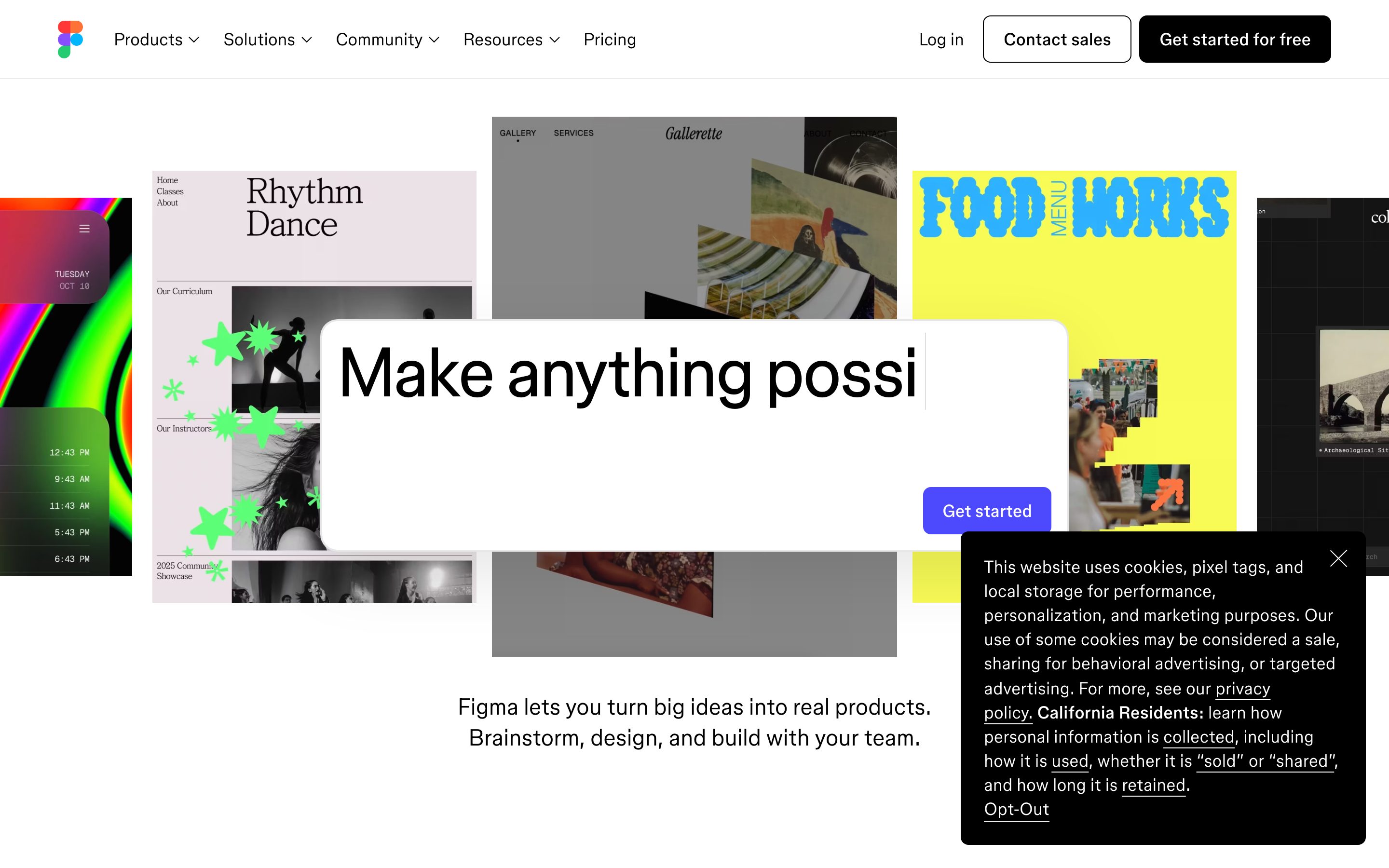
「在 Figma 的理念中,我們希望讓 AI 也能多人協作。協作始終是我們一切工作的核心。」— Figma 團隊
Figma 將設計從獨自創作轉變為團隊運動。作為第一個支援即時協作編輯的設計工具,Figma 證明了複雜的創意工具可以像 Google Docs 一樣流暢運作,同時保持設計師所要求的精確度。
Figma 為何重要
Figma 不只是為設計工具加入多人協作功能,而是重新構想了設計的運作方式。透過將協作融入產品核心,Figma 改變了工作流程、團隊協作模式,以及整個設計到開發的流程。
主要成就: - 第一個支援即時多人編輯的設計工具 - 開創「無限畫布」作為 UI 典範 - 讓設計系統普及至每個團隊 - 透過 Dev Mode 連結設計與開發 - 以協作為基礎建立了價值 200 億美元的創意帝國
核心要點
- 多人協作需要簡潔 - Figma 自行開發了比 operational transforms 更簡單的解決方案,因為簡單的系統更容易除錯和維護
- 無限畫布鼓勵探索 - 不同於以頁面為基礎的工具,開放式畫布鼓勵迭代,避免人為限制
- 情境感知介面降低認知負擔 - 根據選取內容自動調整的工具列和面板,只顯示相關控制項
- 設計 Token 連結設計與程式碼 - 具有基礎層 → 語意層 → 元件層的變數系統,為設計師和開發者創造共同語言
- Dev Mode 是專屬工作空間 - 將開發者工具與設計工具分離,尊重不同的思維模式和工作流程
核心設計原則
1. 以多人協作為基礎
Figma 自行開發的多人協作解決方案,比 operational transforms(OTs)等傳統方法更為簡單。他們的目標是清晰:系統的複雜度不應超過必要程度。
設計哲學:由於 Figma 不是文字編輯器,他們不需要 OTs 的強大功能,可以採用較不複雜的方案。簡單的系統更容易理解、實作、除錯、測試和維護。
多人協作的視覺模式:
PRESENCE INDICATORS:
┌─────────────────────────────────────────────────────────────────┐
│  Canvas                                                          │
│                                                                  │
│  ┌──────────────────────────────────────┐                       │
│  │  Component: Button                    │   (o) Alice          │
│  │  ┌────────────────────┐              │   <- Live cursor      │
│  │  │  Primary Button    │              │                       │
│  │  └────────────────────┘              │                       │
│  └──────────────────────────────────────┘   (*) Bob             │
│                                              <- Selection ring  │
│                                                                  │
│  ┌──────────────────────────────────────┐                       │
│  │  Input Field          (+) Carol      │   <- Editing mode     │
│  │  ┌────────────────────────────────┐  │                       │
│  │  │ |                              │  │                       │
│  │  └────────────────────────────────┘  │                       │
│  └──────────────────────────────────────┘                       │
└─────────────────────────────────────────────────────────────────┘

CURSOR DESIGN:
┌─────────────────────────────────────────────────────────────────┐
│                                                                  │
│  Cursor anatomy:                                                 │
│                                                                  │
│     ▲                                                            │
│    ╱ ╲                                                           │
│   ╱   ╲ ← Arrow (user's color)                                   │
│  ╱_____╲                                                         │
│  ┌─────────┐                                                     │
│  │  Alice  │ ← Name label (appears on hover/activity)           │
│  └─────────┘                                                     │
│                                                                  │
│  States:                                                         │
│  • Idle: Cursor only                                             │
│  • Active: Cursor + name label                                   │
│  • Editing: Cursor + name + "Editing..." badge                   │
│  • Away: Faded cursor (50% opacity)                              │
│                                                                  │
└─────────────────────────────────────────────────────────────────┘
實作原則: - 使用顏色識別使用者,而非僅依賴名稱 - 選取框顯示誰正在哪裡工作 - 游標移動會進行防抖處理以優化效能 - 使用者閒置時,存在指示器會淡出
2. 無限畫布
Figma 的畫布是一個開放、靈活的環境,能夠快速迭代。不同於以頁面為基礎的工具,無限畫布鼓勵探索。
畫布互動模式:
NAVIGATION:
┌─────────────────────────────────────────────────────────────────┐
│  Space + drag     Pan the canvas                                 │
│  Scroll           Pan vertically                                 │
│  Shift + scroll   Pan horizontally                              │
│  Cmd/Ctrl + +/-   Zoom in/out                                    │
│  Cmd/Ctrl + 0     Zoom to 100%                                   │
│  Cmd/Ctrl + 1     Zoom to fit                                    │
│  Cmd/Ctrl + 2     Zoom to selection                              │
└─────────────────────────────────────────────────────────────────┘

ZOOM LEVELS WITH PURPOSE:
┌─────────────────────────────────────────────────────────────────┐
│  100%+     Pixel-level detail work                               │
│  50-100%   Component editing                                     │
│  25-50%    Page/screen level                                     │
│  10-25%    Flow overview                                         │
│  <10%      Bird's eye navigation                                 │
│                                                                  │
│  UI adapts per zoom:                                             │
│  • Text hides below readability threshold                        │
│  • Details simplify at distance                                  │
│  • Frame labels always visible                                   │
└─────────────────────────────────────────────────────────────────┘
小地圖模式:
/* Canvas navigation mini-map */
.minimap {
  position: fixed;
  bottom: 16px;
  right: 16px;
  width: 200px;
  height: 150px;
  background: rgba(0, 0, 0, 0.8);
  border-radius: 8px;
  overflow: hidden;
}

.minimap-viewport {
  /* Current visible area */
  border: 2px solid var(--color-primary);
  background: rgba(255, 255, 255, 0.1);
  cursor: grab;
}

.minimap-content {
  /* Simplified render of all frames */
  opacity: 0.6;
}
3. 工具列即指揮中心
Figma 的工具列體現了漸進式揭露:初看簡單,深入探索則功能強大。
工具列架構:
FIGMA TOOLBAR ANATOMY:
┌─────────────────────────────────────────────────────────────────┐
│                                                                  │
│  ┌─────┬─────┬─────┬─────┬─────┬─────────────────┬───────────┐  │
│  │ [=] │ [>] │ [R] │ [O] │ [-] │  T  (H)  [...]  │  Share v  │  │
│  └──┬──┴──┬──┴──┬──┴──┬──┴──┬──┴────────┬────────┴─────┬─────┘  │
│     │     │     │     │     │           │              │        │
│  Menu  Move  Frame Shape Line       Text/Hand/    Collaboration │
│               tools tools          Comment                      │
│                                                                  │
│  FLYOUT PATTERN:                                                 │
│  ┌─────┐                                                         │
│  │ [R] │ <- Primary tool (click)                                 │
│  └──┬──┘                                                         │
│     │  ┌─────────────────────────┐                               │
│     └──│ [R] Rectangle       R   │ <- Long-press reveals options │
│        │ [O] Ellipse         O   │                               │
│        │ [^] Polygon             │                               │
│        │ [*] Star                │                               │
│        │ [I] Place image  Cmd+K  │                               │
│        └─────────────────────────┘                               │
│                                                                  │
└─────────────────────────────────────────────────────────────────┘

CONTEXT-AWARE TOOLBAR:
Selection changes toolbar options dynamically:

No selection:         [Move] [Frame] [Shape] [Pen] [Text]
Frame selected:       [Move] [Frame] [Auto layout ▼] [Grid ▼]
Text selected:        [Move] [Font ▼] [Size ▼] [Weight ▼] [Align]
Component selected:   [Move] [Variants] [Properties] [Detach]
4. 屬性面板:情境智慧
右側面板會根據選取內容完全自適應,只顯示相關的控制項。
面板架構:
PROPERTIES PANEL STATES:
┌─────────────────────────────────────────────────────────────────┐
│                                                                  │
│  NO SELECTION:                   FRAME SELECTED:                 │
│  ┌────────────────────┐         ┌────────────────────┐          │
│  │ Design   Prototype │         │ Design   Prototype │          │
│  ├────────────────────┤         ├────────────────────┤          │
│  │                    │         │ Frame                         │
│  │  Select something  │         │ W: 375   H: 812    │          │
│  │  to see properties │         │ X: 100   Y: 200    │          │
│  │                    │         ├────────────────────┤          │
│  │                    │         │ Auto Layout        │          │
│  │                    │         │ ═══ ↕ 16  ↔ 24    │          │
│  │                    │         ├────────────────────┤          │
│  │                    │         │ Fill               │          │
│  │                    │         │ ■ #FFFFFF     100% │          │
│  │                    │         ├────────────────────┤          │
│  │                    │         │ Stroke             │          │
│  │                    │         │ + Add stroke       │          │
│  │                    │         ├────────────────────┤          │
│  │                    │         │ Effects            │          │
│  │                    │         │ + Add effect       │          │
│  └────────────────────┘         └────────────────────┘          │
│                                                                  │
└─────────────────────────────────────────────────────────────────┘
CSS 實作模式:
/* Figma-style properties panel */
.properties-panel {
  width: 240px;
  background: var(--bg-secondary);
  border-left: 1px solid var(--border-subtle);
  display: flex;
  flex-direction: column;
}

.property-section {
  padding: 12px 16px;
  border-bottom: 1px solid var(--border-subtle);
}

.property-section-header {
  font-size: 11px;
  font-weight: 600;
  text-transform: uppercase;
  letter-spacing: 0.05em;
  color: var(--text-secondary);
  margin-bottom: 8px;
}

/* 可摺疊區段 */
.property-section[data-collapsed="true"] .property-section-content {
  display: none;
}

/* 內嵌輸入群組 */
.property-row {
  display: flex;
  align-items: center;
  gap: 8px;
  margin-bottom: 8px;
}

.property-label {
  width: 24px;
  font-size: 11px;
  color: var(--text-tertiary);
}

.property-input {
  flex: 1;
  height: 28px;
  padding: 0 8px;
  font-size: 11px;
  background: var(--bg-tertiary);
  border: 1px solid transparent;
  border-radius: 4px;
}

.property-input:focus {
  border-color: var(--color-primary);
  outline: none;
}
5. Variables 與 Design Tokens
到了 2025/2026 年,最前瞻的團隊已完全以 Figma Variables 建構系統:這些原子級的設計決策架起了設計與程式碼之間的橋樑。
Token 架構:
VARIABLE STRUCTURE:
┌─────────────────────────────────────────────────────────────────┐
│                                                                  │
│  PRIMITIVES(原始值)                                            │
│  ├── colors/                                                     │
│  │   ├── blue-50:  #EBF5FF                                       │
│  │   ├── blue-100: #D1E9FF                                       │
│  │   ├── blue-500: #2563EB  ← 品牌主色                          │
│  │   └── ...                                                     │
│  ├── spacing/                                                    │
│  │   ├── 4:  4px                                                 │
│  │   ├── 8:  8px                                                 │
│  │   ├── 16: 16px                                                │
│  │   └── ...                                                     │
│  └── radius/                                                     │
│      ├── sm: 4px                                                 │
│      ├── md: 8px                                                 │
│      └── lg: 16px                                                │
│                                                                  │
│  SEMANTIC(語意層級)                                            │
│  ├── surface/                                                    │
│  │   ├── primary:    → colors/white                              │
│  │   ├── secondary:  → colors/gray-50                            │
│  │   └── elevated:   → colors/white                              │
│  ├── text/                                                       │
│  │   ├── primary:    → colors/gray-900                           │
│  │   ├── secondary:  → colors/gray-600                           │
│  │   └── disabled:   → colors/gray-400                           │
│  └── interactive/                                                │
│      ├── default:    → colors/blue-500                           │
│      ├── hover:      → colors/blue-600                           │
│      └── pressed:    → colors/blue-700                           │
│                                                                  │
│  COMPONENT(元件層級)                                           │
│  ├── button/                                                     │
│  │   ├── background: → interactive/default                       │
│  │   ├── text:       → colors/white                              │
│  │   └── radius:     → radius/md                                 │
│  └── card/                                                       │
│      ├── background: → surface/elevated                          │
│      ├── padding:    → spacing/16                                │
│      └── radius:     → radius/lg                                 │
│                                                                  │
└─────────────────────────────────────────────────────────────────┘
從 Figma variables 匯出的 CSS custom properties:
/* 從 Figma Variables 匯出 */
:root {
  /* Primitives */
  --color-blue-500: #2563EB;
  --color-gray-900: #111827;
  --spacing-16: 16px;
  --radius-md: 8px;

  /* Semantic tokens */
  --color-interactive-default: var(--color-blue-500);
  --color-text-primary: var(--color-gray-900);

  /* Component tokens */
  --button-bg: var(--color-interactive-default);
  --button-radius: var(--radius-md);
  --card-padding: var(--spacing-16);
}

/* 透過 variable modes 實現深色模式 */
[data-theme="dark"] {
  --color-text-primary: #F9FAFB;
  --color-surface-primary: #1F2937;
}
6. Dev Mode:連結設計與程式碼
Figma 的 Dev Mode 是專為開發者打造的工作空間,將設計意圖轉化為可直接用於生產環境的程式碼。
Dev Mode 工作流程:
設計 → 開發交付流程:
┌─────────────────────────────────────────────────────────────────┐
│                                                                  │
│  1. 設計師標記完成                                               │
│  ┌─────────────────────────────────────────────────────────────┐│
│  │  Frame: Login Screen                     [✓ Ready for dev] ││
│  │                                                             ││
│  │  標記完成後:                                               ││
│  │  • 出現在開發者的待辦清單中                                 ││
│  │  • 鎖定重大編輯                                             ││
│  │  • 啟用變更追蹤                                             ││
│  └─────────────────────────────────────────────────────────────┘│
│                                                                  │
│  2. 開發者檢視                                                   │
│  ┌─────────────────────────────────────────────────────────────┐│
│  │  ┌──────────────────┐  ┌──────────────────────────────────┐ ││
│  │  │                  │  │  CSS                              │ ││
│  │  │   [Button]       │  │  .button {                        │ ││
│  │  │                  │  │    display: flex;                 │ ││
│  │  │                  │  │    padding: 12px 24px;            │ ││
│  │  └──────────────────┘  │    background: var(--primary);    │ ││
│  │                        │    border-radius: 8px;            │ ││
│  │  已選取:Button        │  }                                │ ││
│  │  元件:ui/Button       │                                   │ ││
│  │  上次編輯:2 小時前    │  [複製] [切換至 Swift]            │ ││
│  │                        └──────────────────────────────────┘ ││
│  └─────────────────────────────────────────────────────────────┘│
│                                                                  │
│  3. 變更比對                                                     │
│  ┌─────────────────────────────────────────────────────────────┐│
│  │  自上次開發檢視以來的變更:                                 ││
│  │                                                             ││
│  │  - Padding: 16px → 12px                                     ││
│  │  + Border radius: 8px(新增)                               ││
│  │  ~ Color: #2563EB → var(--primary)                          ││
│  └─────────────────────────────────────────────────────────────┘│
│                                                                  │
└─────────────────────────────────────────────────────────────────┘
色彩系統
Figma 的介面採用克制、中性的色彩配置,讓焦點始終保持在使用者內容上。
/* Figma 的 UI 色彩配置 */
:root {
  /* 表面 */
  --bg-canvas: #E5E5E5;        /* 畫布背景 */
  --bg-primary: #FFFFFF;        /* 面板、框架 */
  --bg-secondary: #F5F5F5;      /* 次要面板 */
  --bg-tertiary: #E8E8E8;       /* 輸入框、凹槽 */

  /* 文字 */
  --text-primary: #000000;
  --text-secondary: #666666;
  --text-tertiary: #999999;

  /* 邊框 */
  --border-subtle: rgba(0, 0, 0, 0.1);
  --border-strong: rgba(0, 0, 0, 0.2);

  /* Interactive */
  --color-primary: #0D99FF;     /* Selection, focus */
  --color-primary-hover: #0085EB;
  --color-success: #14AE5C;
  --color-warning: #FFCD29;
  --color-error: #F24822;

  /* Multiplayer colors (assigned to users) */
  --cursor-1: #F24822;  /* Red */
  --cursor-2: #FF7262;  /* Coral */
  --cursor-3: #FFCD29;  /* Yellow */
  --cursor-4: #14AE5C;  /* Green */
  --cursor-5: #0D99FF;  /* Blue */
  --cursor-6: #9747FF;  /* Purple */
  --cursor-7: #FF00FF;  /* Magenta */
}

/* Dark mode */
[data-theme="dark"] {
  --bg-canvas: #1E1E1E;
  --bg-primary: #2C2C2C;
  --bg-secondary: #383838;
  --bg-tertiary: #444444;

  --text-primary: #FFFFFF;
  --text-secondary: #ABABAB;
  --text-tertiary: #7B7B7B;
}
字型排版
Figma 的介面使用 Inter 字型,這是一款專為螢幕顯示設計的字體。
/* Figma's typography system */
:root {
  --font-family: 'Inter', -apple-system, BlinkMacSystemFont, sans-serif;

  /* Type scale */
  --text-xs: 11px;    /* Labels, metadata */
  --text-sm: 12px;    /* Body, properties */
  --text-md: 13px;    /* Headings */
  --text-lg: 14px;    /* Section titles */

  /* Weights */
  --font-regular: 400;
  --font-medium: 500;
  --font-semibold: 600;

  /* Line heights */
  --leading-tight: 1.2;
  --leading-normal: 1.4;
  --leading-relaxed: 1.6;
}

/* Application */
.section-header {
  font-size: var(--text-xs);
  font-weight: var(--font-semibold);
  text-transform: uppercase;
  letter-spacing: 0.05em;
  color: var(--text-secondary);
}

.property-label {
  font-size: var(--text-xs);
  color: var(--text-tertiary);
}

.layer-name {
  font-size: var(--text-sm);
  font-weight: var(--font-medium);
}
動畫與微互動
Figma 使用細膩且有目的性的動態效果來提供回饋,同時避免造成干擾。
/* Figma's motion principles */
:root {
  /* Durations */
  --duration-instant: 50ms;   /* Hover states */
  --duration-fast: 100ms;     /* Toggles, small changes */
  --duration-normal: 200ms;   /* Panel transitions */
  --duration-slow: 300ms;     /* Page transitions */

  /* Easings */
  --ease-out: cubic-bezier(0, 0, 0.2, 1);
  --ease-in-out: cubic-bezier(0.4, 0, 0.2, 1);
}

/* Panel slide-in */
.panel {
  transform: translateX(100%);
  transition: transform var(--duration-normal) var(--ease-out);
}

.panel[data-visible="true"] {
  transform: translateX(0);
}

/* Selection highlight */
.layer-item[data-selected="true"] {
  background: var(--color-primary);
  transition: background var(--duration-fast) var(--ease-out);
}

/* Cursor presence fade */
.remote-cursor {
  transition: opacity var(--duration-slow) var(--ease-out);
}

.remote-cursor[data-idle="true"] {
  opacity: 0.5;
}
關鍵創新
FigJam:延伸畫布的隱喻
FigJam 將 Figma 的畫布延伸至白板功能,證明了無限畫布不僅適用於像素精修,同樣適用於創意發想。
設計決策: - 溫暖、活潑的色彩調性,與 Figma 的中性色調形成對比 - 具有物理特性的便利貼(可以「拋擲」) - 貼圖和表情反應,用於非同步回饋 - 計時器和投票功能,用於會議引導
Variables:原生設計代幣
Figma Variables 將設計代幣提升為一級公民,實現了: - 模式切換(淺色/深色、品牌主題) - 響應式代幣(行動裝置/桌面版數值) - 數值變數用於原型邏輯
AI 整合(2025+)
Figma 的 AI 策略以協作為核心: - AI 驅動的代幣合規性檢查 - 預測性變數建議 - 版面配置優化建議 - Weave 中的生成式設計探索
實作啟示
1. 從第一天就為多人協作而建構
// Presence system architecture
class PresenceManager {
  constructor(roomId) {
    this.users = new Map();
    this.localUser = null;
    this.socket = new WebSocket(`wss://collab.example.com/${roomId}`);

    // Debounce cursor updates
    this.broadcastCursor = debounce((position) => {
      this.socket.send(JSON.stringify({
        type: 'cursor',
        userId: this.localUser.id,
        position,
        timestamp: Date.now()
      }));
    }, 50);
  }

  updateCursor(x, y) {
    this.localUser.cursor = { x, y };
    this.broadcastCursor({ x, y });
  }

  // Fade idle users
  checkIdleUsers() {
    const now = Date.now();
    const IDLE_THRESHOLD = 30000; // 30 seconds

    this.users.forEach(user => {
      user.isIdle = (now - user.lastActivity) > IDLE_THRESHOLD;
    });
  }
}
2. 情境感知介面
// Panel content based on selection
function getPropertiesForSelection(selection) {
  if (selection.length === 0) {
    return { type: 'empty', message: 'Select something to see properties' };
  }

  if (selection.length > 1) {
    return { type: 'mixed', items: selection };
  }

  const item = selection[0];

  switch (item.type) {
    case 'FRAME':
      return {
        type: 'frame',
        sections: ['dimensions', 'autoLayout', 'fill', 'stroke', 'effects']
      };
    case 'TEXT':
      return {
        type: 'text',
        sections: ['font', 'paragraph', 'fill']
      };
    case 'COMPONENT':
      return {
        type: 'component',
        sections: ['properties', 'variants', 'dimensions']
      };
    default:
      return {
        type: 'generic',
        sections: ['dimensions', 'fill', 'stroke']
      };
  }
}
3. 工具列的漸進式揭露
<!-- Tool with flyout variants -->
<div class="tool-button" data-tool="shape">
  <button class="tool-primary" title="Rectangle (R)">
    <svg><!-- Rectangle icon --></svg>
  </button>

  <div class="tool-flyout" hidden>
    <button data-variant="rectangle">
      <svg></svg> Rectangle <kbd>R</kbd>
    </button>
    <button data-variant="ellipse">
      <svg></svg> Ellipse <kbd>O</kbd>
    </button>
    <button data-variant="polygon">
      <svg></svg> Polygon
    </button>
    <button data-variant="star">
      <svg></svg> Star
    </button>
    <hr>
    <button data-variant="image">
      <svg></svg> Place image <kbd>Cmd+Shift+K</kbd>
    </button>
  </div>
</div>

<script>
// Long-press to reveal flyout
const LONG_PRESS_DURATION = 300;

toolButtons.forEach(btn => {
  let pressTimer;

  btn.addEventListener('pointerdown', () => {
    pressTimer = setTimeout(() => {
      btn.querySelector('.tool-flyout').hidden = false;
    }, LONG_PRESS_DURATION);
  });

  btn.addEventListener('pointerup', () => {
    clearTimeout(pressTimer);
  });
});
</script>
相關原則
- 格式塔:鄰近性與群組:面板組織
- 視覺層次:圖層列表設計
- 色彩理論:功能性色彩:狀態與選取
- 間距與韻律:8px 網格系統
常見問題
Figma 的多人協作技術如何運作?
Figma 建構了一套比傳統操作轉換(OTs)更簡單的自研解決方案。由於 Figma 處理的是畫布上的物件而非文件中的文字,他們得以採用較不複雜的衝突解決系統。變更透過 WebSocket 連線同步,游標位置則以 50 毫秒的間隔進行防抖處理以優化效能。使用者透過帶有姓名標籤的彩色游標來識別,這些標籤會在活動時顯示。
Figma 和 FigJam 有什麼區別?
Figma 是一款精準的設計工具,專為 UI/UX 工作而生,具備像素級控制、元件和自動佈局功能。FigJam 則是用於構思的協作白板,擁有更溫暖的色彩調性、具物理特性的便利貼、印章、反應表情,以及計時器和投票等引導工具。兩者都採用無限畫布的範式,但在設計流程中服務於不同目的。
Figma Variables 如何為設計系統運作?
Variables 遵循三層架構:原始值(如 blue-500: #2563EB 這樣的原始數值)、語意化 token(如 interactive-default → blue-500 這樣的情境含義),以及元件 token(如 button-background → interactive-default 這樣的特定用途)。這種分層結構支援淺色/深色主題的模式切換和響應式數值,同時維持單一事實來源。
什麼是 Dev Mode,它是為誰設計的?
Dev Mode 是一個專屬的開發者工作空間,將設計意圖轉譯為可投入生產的程式碼。設計師將 frame 標記為「ready for dev」後,這些 frame 就會被鎖定以防止重大編輯,並啟用變更追蹤功能。開發者可以看到生成的 CSS、Swift 或其他程式碼片段、元件參照,以及顯示自上次檢視以來變更內容的差異比對視圖。
為什麼 Figma 使用無限畫布而非頁面?
無限畫布消除了基於頁面的工具所施加的人為限制。設計師可以將整個使用者流程並排展示、在不同縮放層級比較變體,並在無需管理頁面導航的情況下探索想法。不同的縮放層級服務於不同目的:100% 以上用於像素級工作、25-50% 用於頁面級審查、10% 以下則用於鳥瞰式導航。











