Bear: Typography-First Writing
How Bear's typography-first design won Apple Design Awards: nested tags, theme system, focus mode, and inline Markdown. Swift code included.
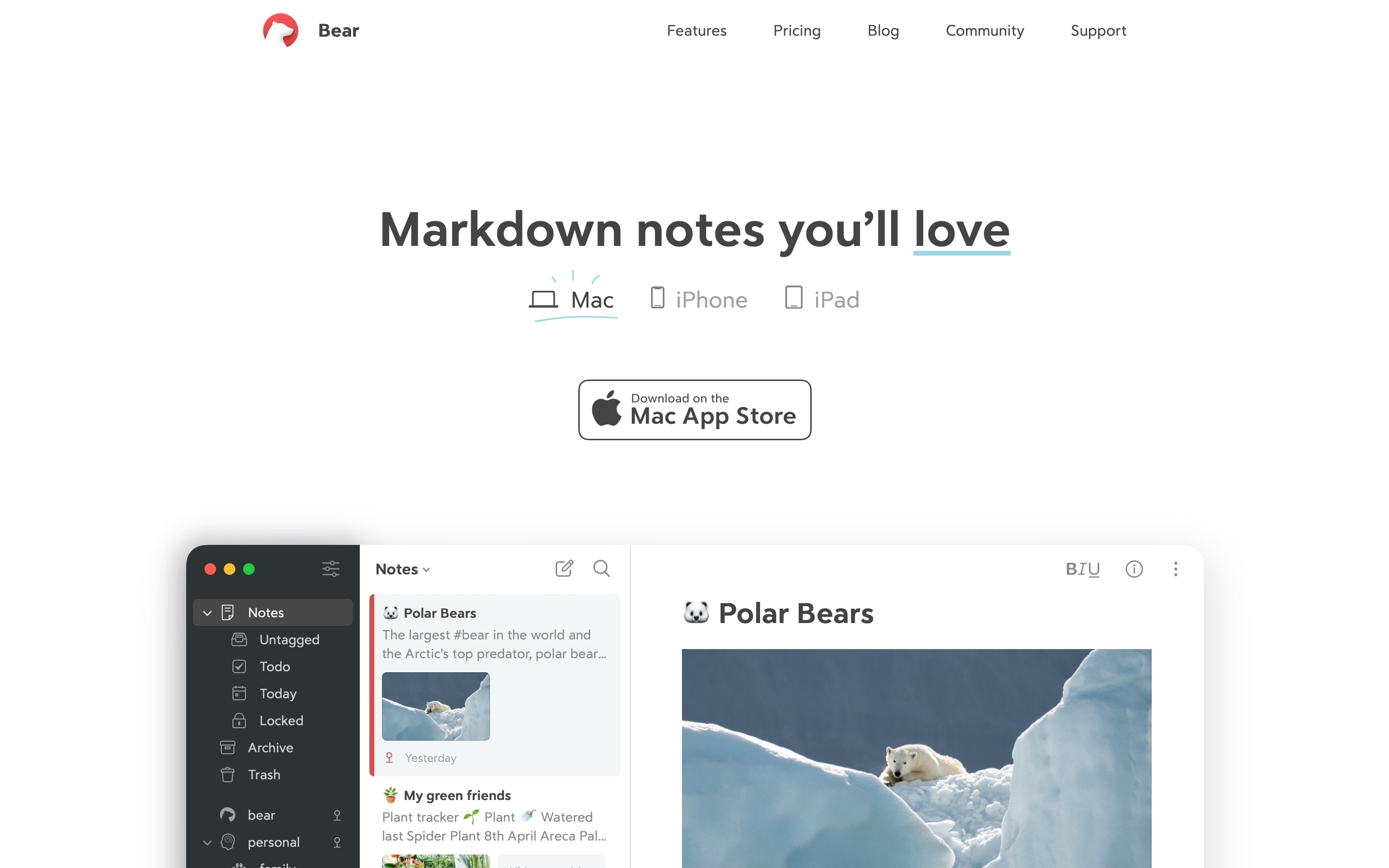
Bear: Typography-First Writing
“With Bear you’ll feel like you are using an Apple computer again. No spinners, no skeleton loading screens, no toast messages. Only smooth animations and always ready-for-action content.”
Bear is a masterclass in distraction-free design. Every decision, from typography to tag systems, serves writers who want to think, not manage.
Key Takeaways
- Zero loading states - Content is always ready; sync happens invisibly in background
- Tags replace folders - Inline
#tagsduring writing beat folder management afterward, and notes can live in multiple places - Typography controls respect readers - Font, size, line height, and width controls let users optimize for their eyes
- Theme everything at once - 28+ curated themes beat piecemeal color pickers
- Focus mode as escape hatch - When distraction-free needs to go further, one gesture removes everything
Why Bear Matters
Bear won Apple Design Award 2017 and multiple Editor’s Choice awards by proving that notes apps can be both powerful and beautiful.
Key achievements:
- Made Markdown accessible to non-developers
- Invented nested tags as a flexible alternative to folders
- Created 28+ themes for different writing contexts
- Designed OLED-specific themes (Dieci) for true black
- Zero loading states: content is always ready
Core Design Philosophy
The Anti-Friction Principle
Bear removes every obstacle between thought and text:
FRICTION PATTERNS (Other apps)        BEAR'S APPROACH
───────────────────────────────────────────────────────────────────
Folder dialogs before creating        Just start typing
Format toolbars blocking view         Markdown inline, invisible
Sync spinners interrupting flow       Background sync, no indicators
Settings scattered in menus           Typography always in reach
Color pickers for highlighting        Themes change everything at once
Key insight: Every UI element is a potential interruption. Remove as many as possible.
Pattern Library
1. Infinite Nested Tags
Bear’s tag system replaces rigid folder hierarchies with flexible, inline organization.
Traditional folders vs Bear tags:
FOLDER APPROACH                       BEAR'S TAG APPROACH
───────────────────────────────────────────────────────────────────
📁 Work                               Note contains: #work/meetings
├── 📁 Meetings                       Note contains: #work/meetings/q1
│   ├── 📁 Q1
│   │   └── standup-2025-01.md       One note can have MULTIPLE tags:
│   └── 📁 Q2                         #work/meetings #action-items #q1
└── 📁 Projects

Single location                       Multiple locations (virtual)
Move = file operation                 Tag = just type it
Visible in file browser               Visible in sidebar + note body
Tag syntax:
Single tag:      #ideas
Nested tag:      #work/meetings/2025
Deep nesting:    #journal/2025/01/17

Sidebar result:
├─ 📁 work
│   └─ 📁 meetings
│       └─ 📄 2025
├─ 📁 journal
│   └─ 📁 2025
│       └─ 📁 01
│           └─ 📄 17
Key insight: Tags are typed inline, not selected from menus. The act of writing creates the organization.
2. Typography Control System
Bear provides granular typography controls that other notes apps hide:
┌─ Typography Settings ──────────────────────────────────────────────┐
│                                                                    │
│  Font                                                              │
│  [Avenir Next ▼]        ← System fonts + custom fonts             │
│                                                                    │
│  Size                                                              │
│  [─────●────────]  16pt                                           │
│                                                                    │
│  Line Height                                                       │
│  [────────●─────]  1.6                                            │
│                                                                    │
│  Line Width                                                        │
│  [──●───────────]  Narrow   ← Optimal reading width               │
│                                                                    │
│  Paragraph Spacing                                                 │
│  [─────●────────]  Medium                                         │
│                                                                    │
└────────────────────────────────────────────────────────────────────┘
Swift implementation approach:
struct TypographySettings: Codable {
    var fontName: String = "Avenir Next"
    var fontSize: CGFloat = 16
    var lineHeightMultiple: CGFloat = 1.6
    var lineWidth: LineWidth = .comfortable
    var paragraphSpacing: CGFloat = 12

    enum LineWidth: String, Codable {
        case narrow = "narrow"      // ~60 characters
        case comfortable = "medium" // ~75 characters
        case wide = "wide"          // Full width
    }
}

// Applied to editor
func applyTypography(_ settings: TypographySettings, to textView: UITextView) {
    let style = NSMutableParagraphStyle()
    style.lineHeightMultiple = settings.lineHeightMultiple
    style.paragraphSpacing = settings.paragraphSpacing

    let attributes: [NSAttributedString.Key: Any] = [
        .font: UIFont(name: settings.fontName, size: settings.fontSize)!,
        .paragraphStyle: style
    ]

    textView.typingAttributes = attributes
}
3. Theme System
Bear’s themes affect everything at once—no piecemeal color picking.
Theme structure:
struct BearTheme {
    // Background layers
    let sidebarBackground: Color
    let noteListBackground: Color
    let editorBackground: Color

    // Text hierarchy
    let textPrimary: Color
    let textSecondary: Color
    let textMuted: Color

    // Semantic highlights
    let tagColor: Color
    let linkColor: Color
    let codeBackground: Color
    let headingColor: Color

    // Selection and focus
    let selectionColor: Color
    let cursorColor: Color
}

// Example: Red Graphite (default light theme)
let redGraphite = BearTheme(
    sidebarBackground: Color(hex: "#F7F7F7"),
    noteListBackground: Color(hex: "#FFFFFF"),
    editorBackground: Color(hex: "#FFFFFF"),
    textPrimary: Color(hex: "#333333"),
    textSecondary: Color(hex: "#888888"),
    textMuted: Color(hex: "#BBBBBB"),
    tagColor: Color(hex: "#D14C3E"),      // The signature red
    linkColor: Color(hex: "#B44B41"),
    codeBackground: Color(hex: "#F5F5F5"),
    headingColor: Color(hex: "#333333"),
    selectionColor: Color(hex: "#FFE4E1"),
    cursorColor: Color(hex: "#D14C3E")
)

// Example: Dieci (OLED-optimized)
let dieci = BearTheme(
    sidebarBackground: Color(hex: "#000000"),  // True black
    noteListBackground: Color(hex: "#000000"), // True black
    editorBackground: Color(hex: "#000000"),   // True black
    textPrimary: Color(hex: "#FFFFFF"),
    textSecondary: Color(hex: "#888888"),
    textMuted: Color(hex: "#555555"),
    tagColor: Color(hex: "#FF9500"),
    linkColor: Color(hex: "#FF9500"),
    codeBackground: Color(hex: "#1C1C1C"),
    headingColor: Color(hex: "#FFFFFF"),
    selectionColor: Color(hex: "#3A3A3C"),
    cursorColor: Color(hex: "#FF9500")
)
Theme categories:
- Light themes: Red Graphite, High Contrast, Solarized Light
- Dark themes: Dark Graphite, Dracula, Nord
- OLED themes: Dieci, Charcoal (true black for battery saving)
- Specialty: Shibuya Jazz, Everforest (mood-specific)
4. Focus Mode
Bear’s focus mode removes everything except words—even the cursor is subtle.
NORMAL MODE
┌────────┬────────────┬───────────────────────────────────────────┐
│        │            │                                           │
│Sidebar │ Note List  │  Editor                                   │
│        │            │                                           │
│ #work  │  Meeting   │  # Meeting Notes                          │
│ #ideas │  Ideas     │                                           │
│ #books │  Draft     │  Today we discussed...                    │
│        │            │                                           │
└────────┴────────────┴───────────────────────────────────────────┘

FOCUS MODE (keyboard shortcut or swipe)
┌─────────────────────────────────────────────────────────────────┐
│                                                                 │
│                                                                 │
│                   # Meeting Notes                               │
│                                                                 │
│                   Today we discussed...                         │
│                                                                 │
│                                                                 │
│                                                                 │
└─────────────────────────────────────────────────────────────────┘

Everything disappears. Only words remain.
Implementation principles:
- Single gesture or shortcut triggers
- Animation is quick (no lingering transitions)
- Cursor blinks subtly, doesn’t demand attention
- Margins provide breathing room around text
5. TagCons (Visual Tag Icons)
Bear automatically assigns icons to common tags, making the sidebar scannable.
Sidebar with TagCons:
├─ 💡 ideas
├─ 📚 books
├─ ✏️ writing
├─ 📝 journal
├─ 🏃 fitness
├─ 💼 work
│   ├─ 📅 meetings
│   └─ 📋 projects
└─ 🎯 goals
Icon assignment logic:
enum TagConCategory {
    static let mappings: [String: String] = [
        "ideas": "💡",
        "books": "📚",
        "reading": "📖",
        "writing": "✏️",
        "journal": "📝",
        "diary": "📓",
        "work": "💼",
        "meetings": "📅",
        "projects": "📋",
        "goals": "🎯",
        "fitness": "🏃",
        "health": "❤️",
        "recipes": "🍳",
        "travel": "✈️",
        "music": "🎵",
        "code": "💻",
    ]

    static func icon(for tag: String) -> String? {
        let normalized = tag.lowercased()
        return mappings[normalized]
    }
}
Key insight: Icons are auto-assigned but customizable. Smart defaults reduce setup friction.
Visual Design System
Color Palette (Red Graphite Theme)
extension Color {
    // Signature accent
    static let bearRed = Color(hex: "#D14C3E")

    // Backgrounds
    static let sidebarBg = Color(hex: "#F7F7F7")
    static let editorBg = Color(hex: "#FFFFFF")

    // Text
    static let textPrimary = Color(hex: "#333333")
    static let textSecondary = Color(hex: "#888888")

    // Code blocks
    static let codeBg = Color(hex: "#F5F5F5")
    static let codeText = Color(hex: "#333333")
}
Typography
struct BearTypography {
    // Editor fonts
    static let bodyFont = Font.custom("Avenir Next", size: 16)
    static let headingFont = Font.custom("Avenir Next", size: 24).weight(.semibold)
    static let monoFont = Font.custom("SF Mono", size: 14)

    // Line heights
    static let bodyLineHeight: CGFloat = 1.6
    static let headingLineHeight: CGFloat = 1.3

    // Optimal reading width
    static let maxLineWidth: CGFloat = 680  // ~75 characters
}
Animation Philosophy
No Loading States
Bear’s key animation principle: content is always ready.
// Anti-pattern: Loading spinner
struct LoadingNote: View {
    var body: some View {
        ProgressView()  // Bear NEVER does this
    }
}

// Bear's approach: Optimistic, instant
struct NoteEditor: View {
    @State private var note: Note

    var body: some View {
        TextEditor(text: $note.content)
            .onAppear {
                // Content already available from local cache
                // Sync happens invisibly in background
            }
    }
}
Smooth Panel Transitions
// Sidebar collapse/expand
withAnimation(.spring(response: 0.3, dampingFraction: 0.8)) {
    sidebarVisible.toggle()
}

// Focus mode transition
withAnimation(.easeInOut(duration: 0.2)) {
    focusMode = true
}
Markdown Experience
Live Preview (Inline Styling)
Bear renders Markdown as you type. No split view needed.
What you type:              What you see:
───────────────────────────────────────────────────────
# Heading                   Heading (large, bold)

**bold text**               bold text (styled, ** hidden)

- list item                 • list item (bullet rendered)

`code`                      code (monospace, highlighted)

[link](url)                 link (styled, URL hidden)
Implementation concept:
class MarkdownTextStorage: NSTextStorage {
    private var backingStore = NSMutableAttributedString()

    override func replaceCharacters(in range: NSRange, with str: String) {
        beginEditing()
        backingStore.replaceCharacters(in: range, with: str)
        edited(.editedCharacters, range: range, changeInLength: str.count - range.length)
        endEditing()
    }

    override func processEditing() {
        super.processEditing()
        applyMarkdownStyling()
    }

    private func applyMarkdownStyling() {
        // Apply styles based on Markdown patterns
        // Hide syntax characters (**, `, #, etc.)
        // Render inline while preserving plain text source
    }
}
Lessons for Our Work
1. Zero Loading States
If content exists locally, show it instantly. Sync in background.
2. Tags > Folders
Inline tagging during writing is faster than folder management afterward.
3. Typography is UX
Giving users control over font, size, line height, and width shows respect for reading.
4. Theme Everything at Once
Don’t make users pick 12 colors. Curate complete themes.
5. Focus Mode as Escape Hatch
When distraction-free isn’t distraction-free enough, one gesture removes everything.
Frequently Asked Questions
How do Bear’s nested tags work?
Type #parent/child/grandchild anywhere in a note. Bear automatically creates the hierarchy in the sidebar. Unlike folders, a note can have multiple tags, placing it in multiple “locations” simultaneously. Tags are created by typing them, not by navigating menus.
Why does Bear use themes instead of individual color settings?
Themes ensure visual coherence. When users pick colors individually, they often create combinations with poor contrast or clashing tones. Bear’s 28+ curated themes guarantee readable, aesthetically consistent color schemes across all UI elements.
What makes Bear’s Markdown different from other editors?
Bear renders Markdown inline as you type. Syntax characters (**, #, backticks) hide after you type them, showing only the styled result. You see the final appearance while editing, without a separate preview pane.
How does Bear achieve zero loading states?
Bear stores all content locally and loads from cache instantly. iCloud sync happens in the background without spinners or progress indicators. If you open Bear offline, everything works. Sync completes silently when connection returns.
Can I export my Bear notes to other formats?
Bear exports to Markdown, PDF, HTML, DOCX, and plain text. Notes retain their Markdown source, so you own your data. The tag system exports as frontmatter or file structure depending on the format.











